Application
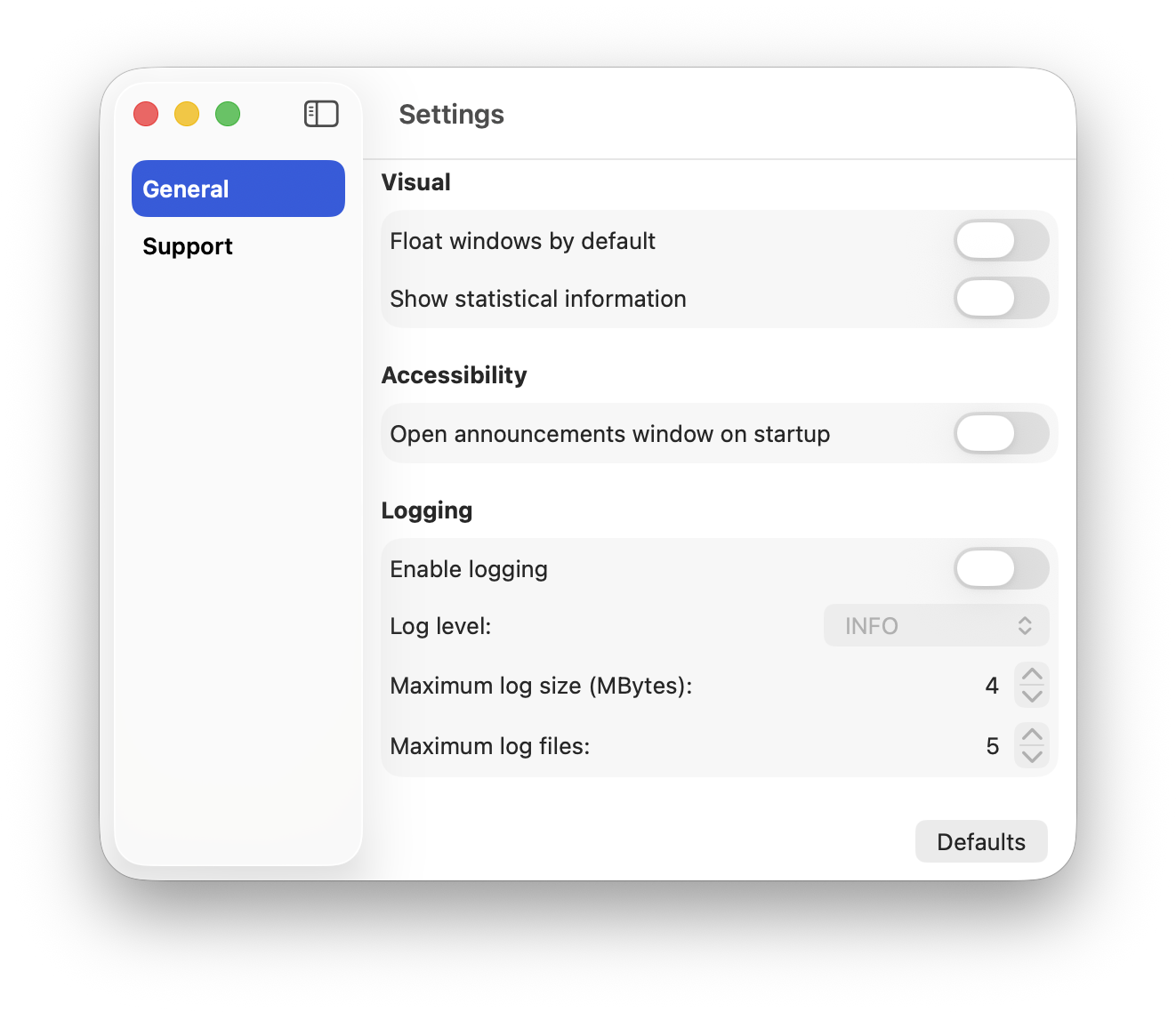
Application properties are presented using a dual panel list-view window. In its left pane are the options 'General' and 'Support' as seen in the image below.
General
These properties affect behaviours across Expert Controller Plus. The settings are separated into the following three categories: Visual, Accessibility and Logging.
All properties may be reset to default values using the 'Defaults' button at the base of the window.
Visual
Float windows by default
Default: Off
Many of the windows in Expert Controller Plus may be 'pinned' so that they float above all other windows on the macOS desktop. Windows that support this capability have a pin icon located in the top-right corner of their title-bar. An example is presented in the image below. This capability requires macOS 15 or later.
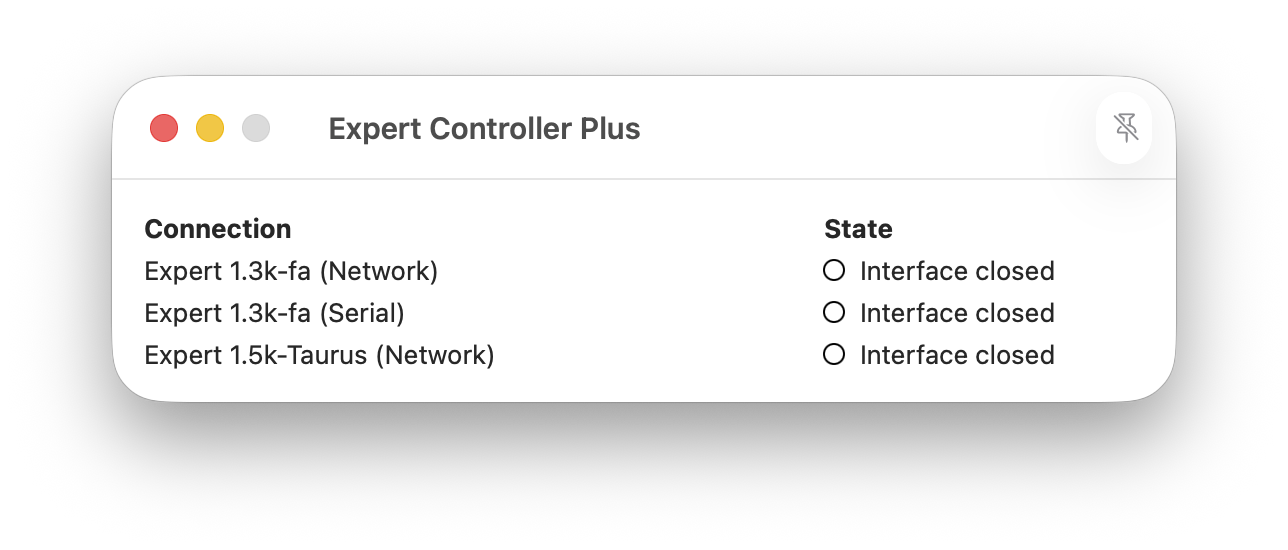
By default these windows do not 'float'. This default behaviour may be toggled so that all such windows 'float' by enabling this configuration property.
Show statistical information
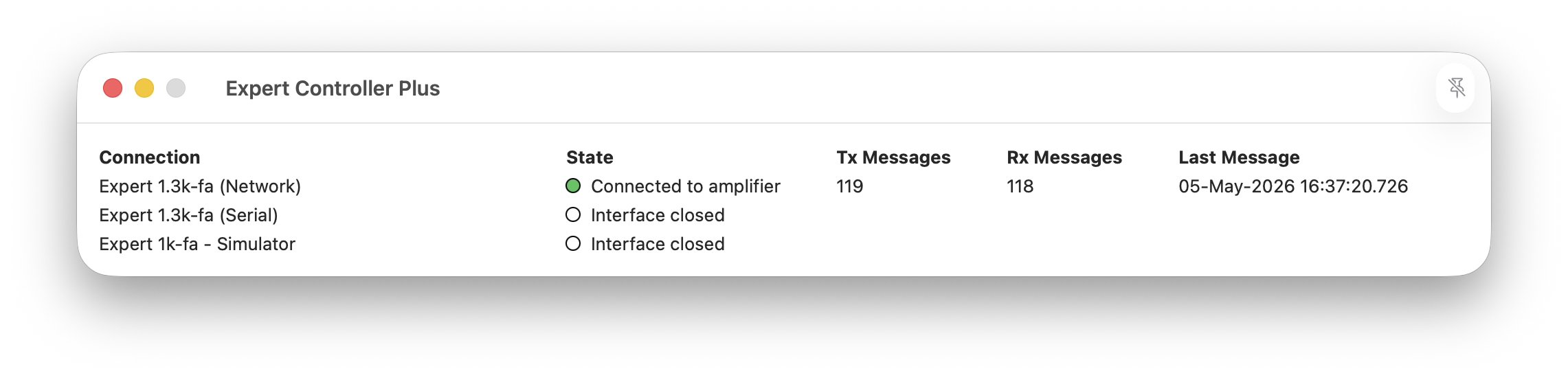
The Connection overview window shown above lists only Connections and their state by default. This may be changed to also show statistical information for each Connection as presented in the image below. Further information regarding this feature is found in the Connection overview section.
Accessibility
Open announcements window on startup
The Announcements window, by default, is not opened when Expert Controller Plus starts. To open this window by default at startup, enable this property using the toggle control.
Logging
Expert Controller Plus may be configured using this group of properties to log many informational messages to a human readable log file for review. This capability may be useful if diagnosing an issue.
By default logging is off. If the capability is not required it is recommended to have this configured: Off.
Enable logging
Default: Off
To enable logging adjust the toggle control to the 'On' position.
Log level
Default: INFO
Expert Controller Plus has eight levels of logging and with each increase in level more information is logged. The level that logs least information is EMERGENCY; DEBUG logs the greatest amount of information.
DEBUG logging especially, logs lots of messages and as such requires noticeably greater compute power hence it is highly recommended not to log at this level unless it's strictly necessary.
The available log levels are:
-
EMERGENCY
-
ALERT
-
CRITICAL
-
ERROR
-
WARNING
-
NOTICE
-
INFO
-
DEBUG.
Maximum log size (MBytes)
Default: 4
Expert Controller Plus logs human readable messages to its log file. The maximum size of this log file, expressed in Mega Bytes, is capped at the size specified by this property. On reaching the limit the log file is either archived or overwritten depending upon the 'Maximum log files' property setting.
Maximum log files
Default: 5
When a log file reaches the size defined in property 'Maximum log size (MBytes)' this property is used by Expert Controller Plus to decide whether the log file is archived or immediately overwritten.
This property defines the quantity of log files that are retained/archived.
When the limit is reached, Expert Controller Plus will delete the oldest of the log files and commence logging to a new file.
Support
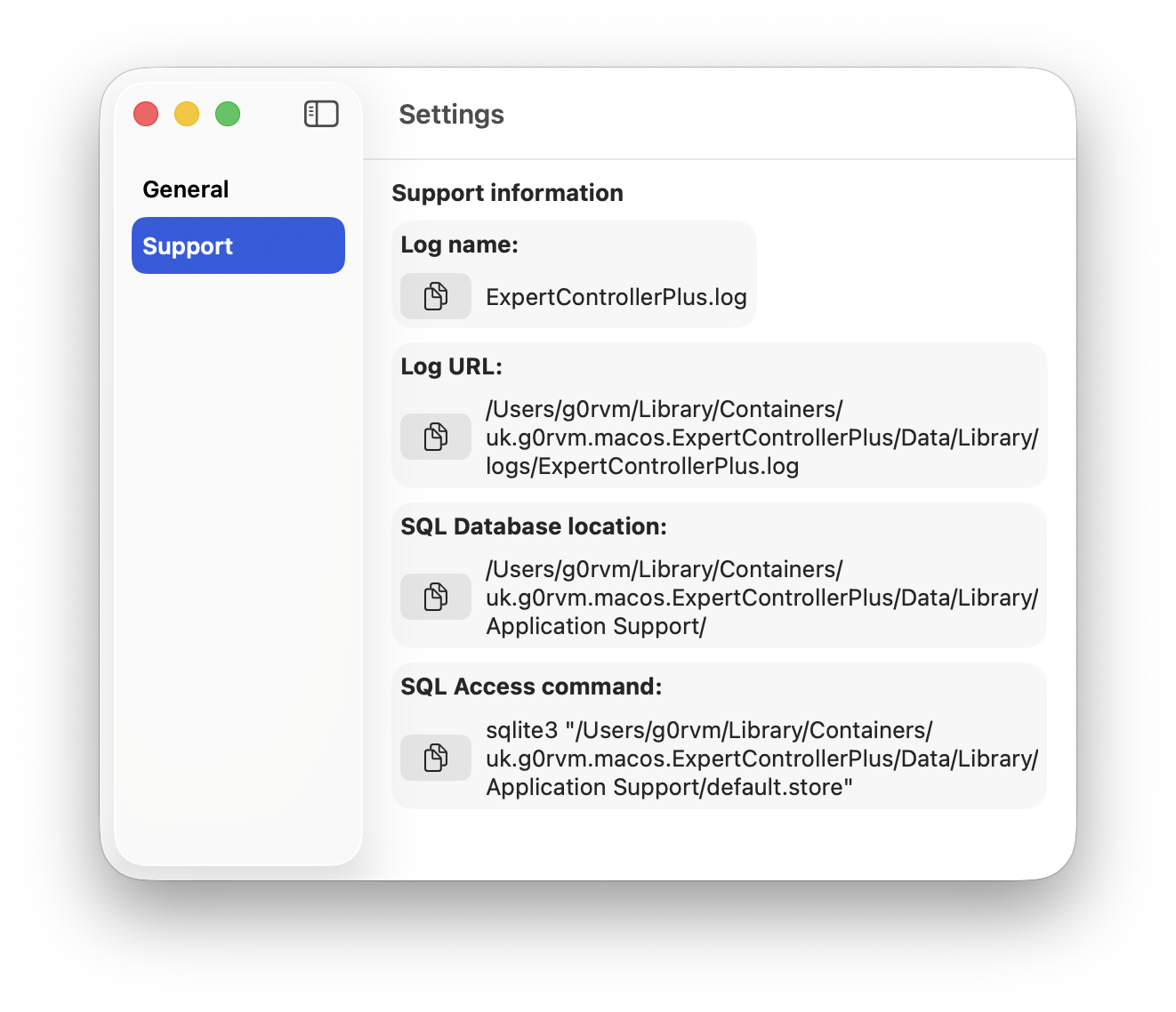
The purpose of the Support information presented in the right-pane of the window is to aid support of Expert Controller Plus should that become necessary.
Four items of information are detailed and for each a 'Copy' button provides an easy way to copy the associated information into the macOS 'Copy+Paste' buffer.
The four items of information are:
-
Log name
-
Log URL
-
SQL Database location
-
SQL Access command.
This information is read-only and presented for use in a support scenario only. An example of this window is presented below.