Activation
Connections
Using this window, previously defined Connections may be started, stopped, woken and slept. The following sections describe each of these tasks.
When this window is opened and the evaluation period has expired a further window requesting payment or advising that the unlocked version may be downloaded from the Apple App store will be presented. For further information see Annex: Purchasing.
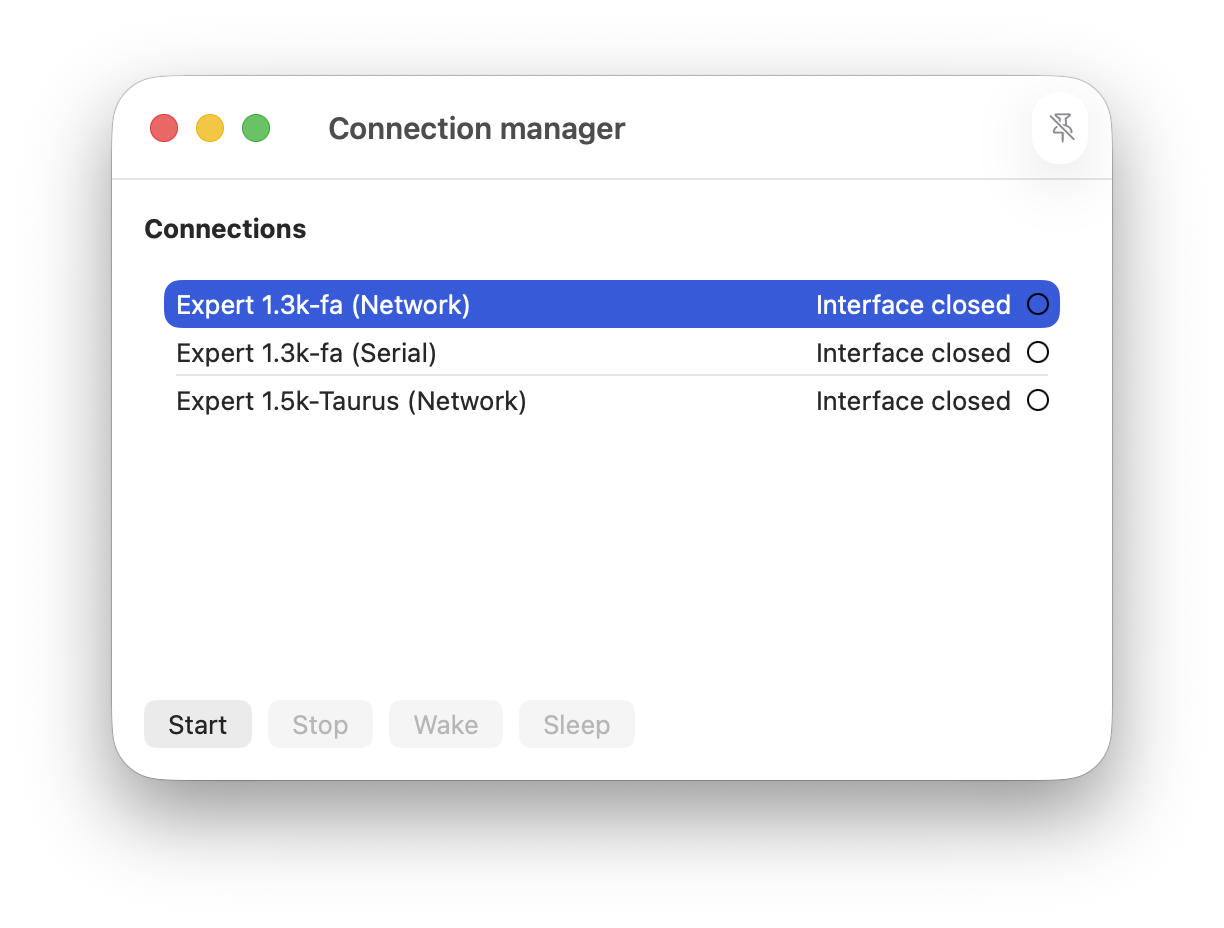
The Connection manager window presents a list of enabled Connections and the state of those Connections.
NOTE: To enable/disable a Connection see Connection settings.
NOTE: Connection states are described in an Annex of this User Guide.
To perform the desired Start, Stop, Wake or Sleep operation, select a Connection followed by the desired action button. When an action is not appropriate due to the operational state of an amplifier its associated action button is disabled. For an example, a Connection that has not been started may not be stopped.
NOTE: Only one Connection may be selected per operation. If multiple Connections are defined consider adding them to Groups and using the Group manager.
Start
The selected Connection may be started by selecting the 'Start' button. Once the Connection is started its state will change to reflect the success/failure of the operation.
Starting a Connection will perform the actions defined in its configuration. For example: use serial RTS signalling or Modbus TCP to wake an amplifier; open one or more amplifier view windows.
Once the operation is complete the Connection manager window will be updated to reflect the Connections state.
Stop
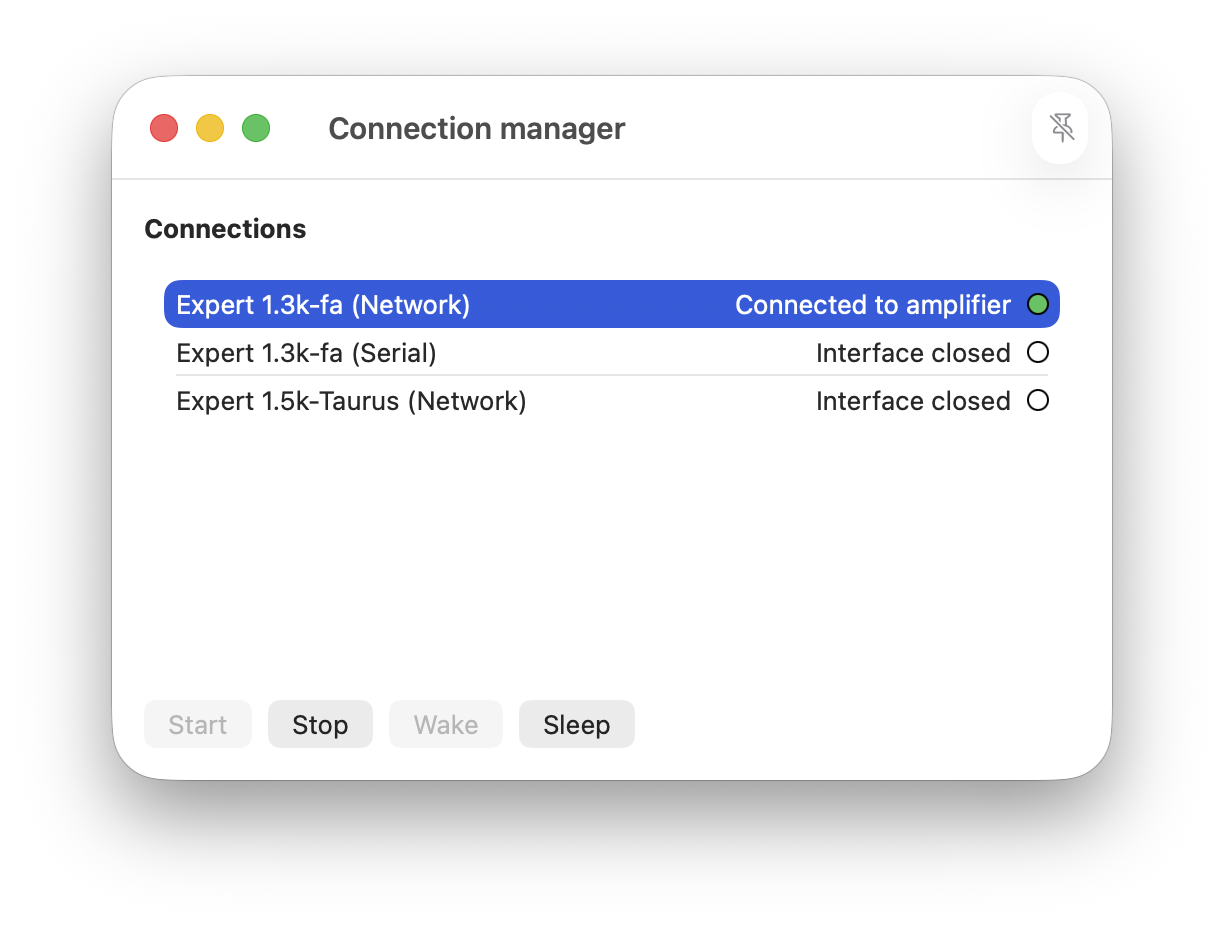
Connections that may be stopped show their state as 'Connected to amplifier'. Select the Connection followed by the 'Stop' button.
This operation will stop the Connection and return it to an 'Interface closed' state. Any amplifier view windows that were automatically opened when the Connection was started will automatically close and actions defined for the Connection will be enacted. For example: use serial RTS signalling or Modbus TCP to sleep an amplifier.
Wake
When a Connection is asleep it may be woken using this button.
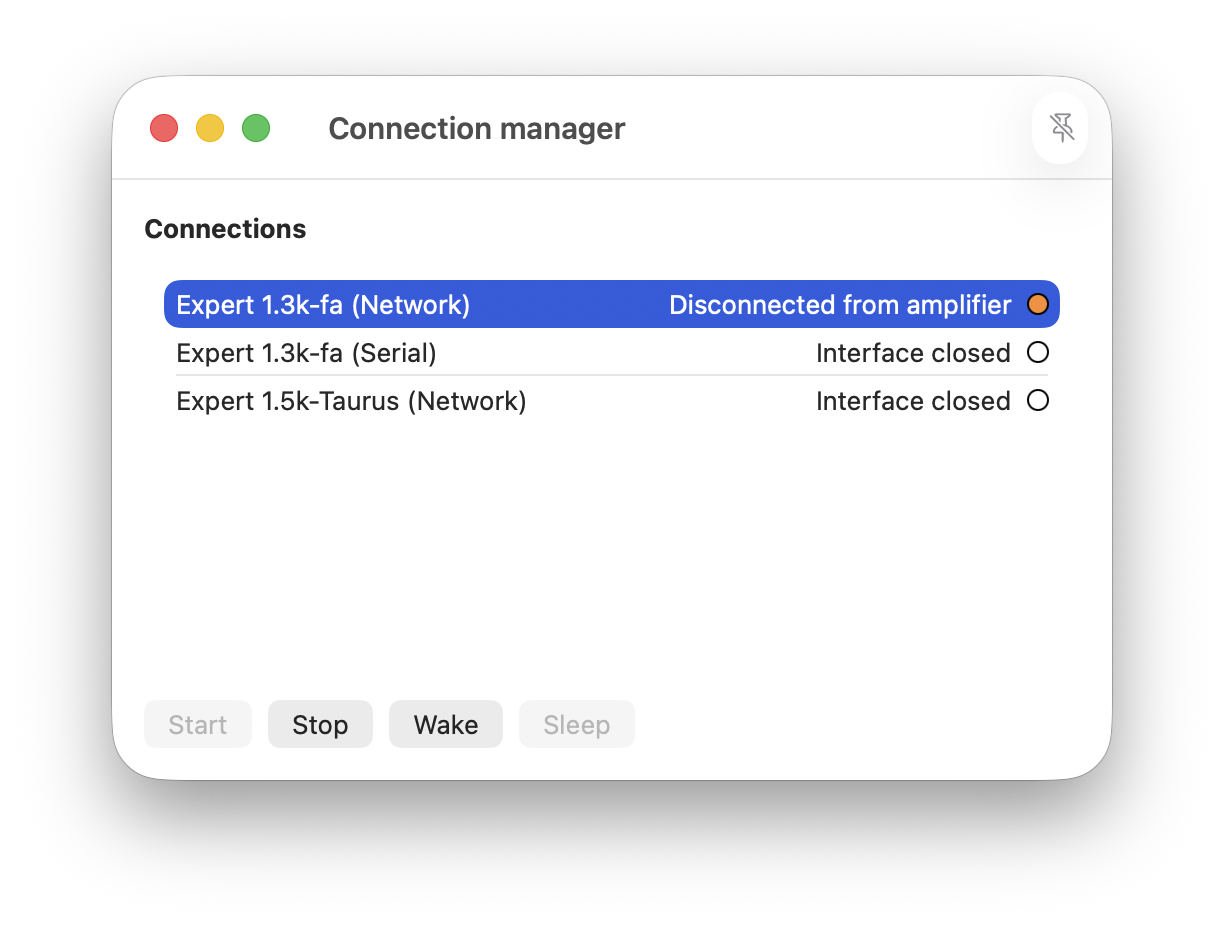
When 'Wake' is selected Expert Controller Plus will perform the actions defined in the Connections configuration. This may include asserting the RTS signal or sending an Modbus Wake.
Sleep
Sleep will command a Connection to sleep by performing the actions defined in its configuration.
If the Connection is configured to drop RTS or use Modbus TCP to sleep an amplifier those actions will be performed. However, Sleep differs from Stop in that Expert Controller Plus will retain all open amplifier view windows for the Connection and periodically attempt to re-establish communications with an amplifier.
Connections in the sleep state or Connections where an amplifier is no longer responding to Expert Controller Plus are identified with a 'Disconnected from amplifier' state. An example is presented below.
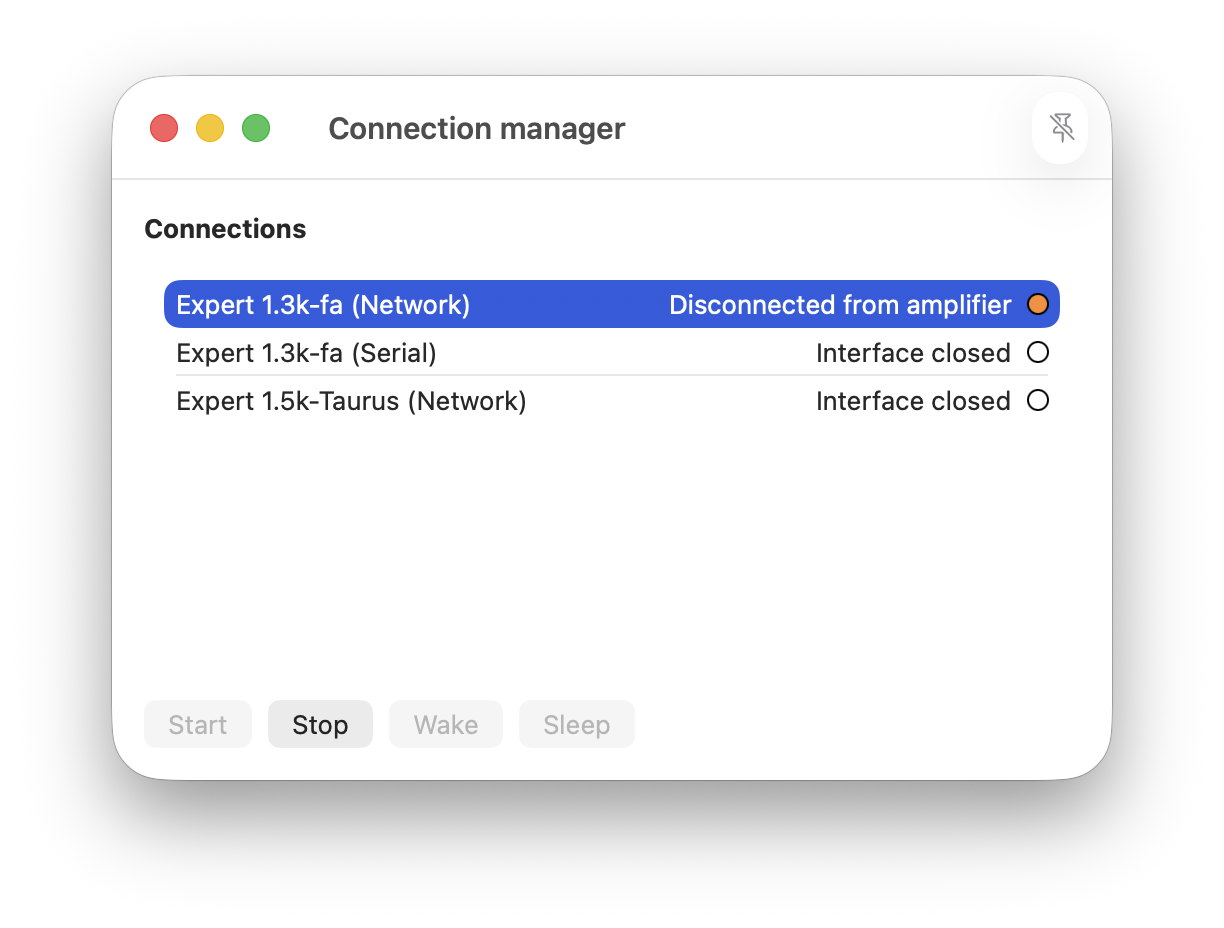
If a Connection has not been configured with a way to wake an amplifier, the amplifier must be awoken manually using its front panel controls. This is illustrated above as the 'Wake' button is disabled. The capability to 'Stop' the Connection remains available.