Introduction
Introduction
Purpose
This manual describes the configuration and operation of Expert Controller Plus and is available in EPUB, PDF and HTML formats at: https://g0rvm.uk/support
In addition to this User Manual, the reader is advised to review the SPE documentation for their amplifier models. That documentation will succinctly describe the capabilities, controls and computer interfacing requirements for their amplifiers. The SPE documentation is available from their website.
This User Manual focuses on the Expert Controller Plus application and chooses to avoid repeating information found in the, above referenced, SPE documentation.
Please send all correspondence, including support and feature requests either direct by email or via the Contact form at: https://g0rvm.uk/contact
- System requirements
Expert Controller Plus has the following system requirements
- macOS 14, 15, 26
- SPE Expert 1k-FA, SPE Expert 1.3k-FA, SPE Expert 1.5k-FA, SPE Expert 1.5k-Taurus or SPE Expert 2k-FA Amplifier
- USB or RS-232 wired connection between the SPE Expert amplifier and Mac or
- USB or RS-232 wired connection between an SPE Expert amplifier and USB/RS-232 to TCP/IP network adapter
Expert Controller Plus was designed in 2025 for macOS 14 and later versions. However, some of it’s features require macOS 15 or later. Where Expert Controller Plus features are dependent upon a minimum macOS version, those features are annotated using a red-coloured macOS version label in this manual. Example:
Terminology
Expert Controller Plus and this documentation uses several terms whose definition is detailed in the table below:
| Term | Definition |
|---|---|
| Activation | A top-level menu option from which its possible to access functionality that permits Groups and Connections to be Started, Stopped, Slept and Woken. |
| Connection | A Connection describes a single interface between Expert Controller Plus and an SPE Expert amplifier. Multiple Connections may be defined. Each Connection specifies the properties that apply to the interface. For example: serial/network interface, MODBUS TCP, default windows and Voiceover. |
| Group | A Group is a collection of Connections. A Connection may exist in multiple Groups. Groups enable Activation actions such as a Start/Stop to effect multiple Connections. Thus Starting a Group will start all Connections in that group. |
| Floating window | A floating window stays above other windows even if other applications or windows are active and in the foreground. It remains visible as long as it is not minimised or closed. |
User interface
Expert Controller Plus uses a graphical User Interface (UI) to enable interaction with the software. The UI style and operation aligns with modern macOS UI design principles, therefore the interface should be familiar to all macOS users.
Expert Controller Plus allows key windows to be floated above all other windows so that they always remain visible on the macOS desktop. These are known as floating windows. Windows that enable this capability have a pin icon in the top-right side of their title-bar. When float is enabled the pin icon is coloured blue, when disabled it is grey with a diagonal line. This capability requires macOS 15 or later.
Expert Controller Plus respects macOS Light and Dark modes and will automatically transition between them when requested by macOS. Several colour schemes are available in Light mode and one, Green black, in Dark mode. Each amplifier connection may be configured to use a different colour scheme.
Expert Controller Plus uses the macOS application menu-bar, presented by macOs at the top of a display to facilitate access to its capabilities. Where appropriate custom keyboard shortcuts (Annex A) have been created to enable access to capabilities.
The macOS Menu bar provides access to the following capabilities:
- About Expert Controller Plus
- Check for update (Not available when purchased using the Apple App Store)
- Group, Connection, Amplifier and Application settings
- Amplifier connection view windows
- Amplifier connections overview
- Audible amplifier connection status reports.
The ‘Help’ menu provides four links that provide easy access to: the User Manual, a Release Note, News and Support. All require Internet connectivity. Both the User Manual and Release Note may be downloaded for offline access and are available in EPUB and PDF formats.
Initial start-up
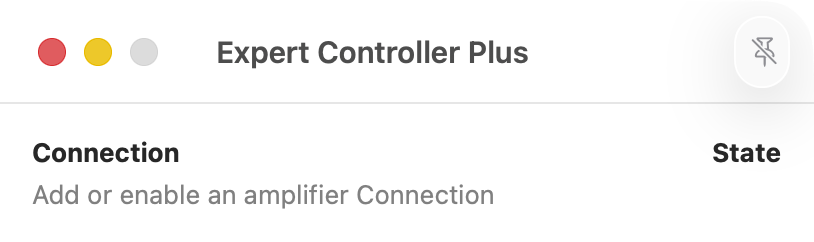
The Overview window is opened by default when the application starts. It presents an overview of all enabled connections and their amplifier connection status. Although intended to always be open during use of the application, it may be minimised, closed and reopened on user request. The image below presents a view of the Overview window at initial start-up or when no amplifier connections have been defined.
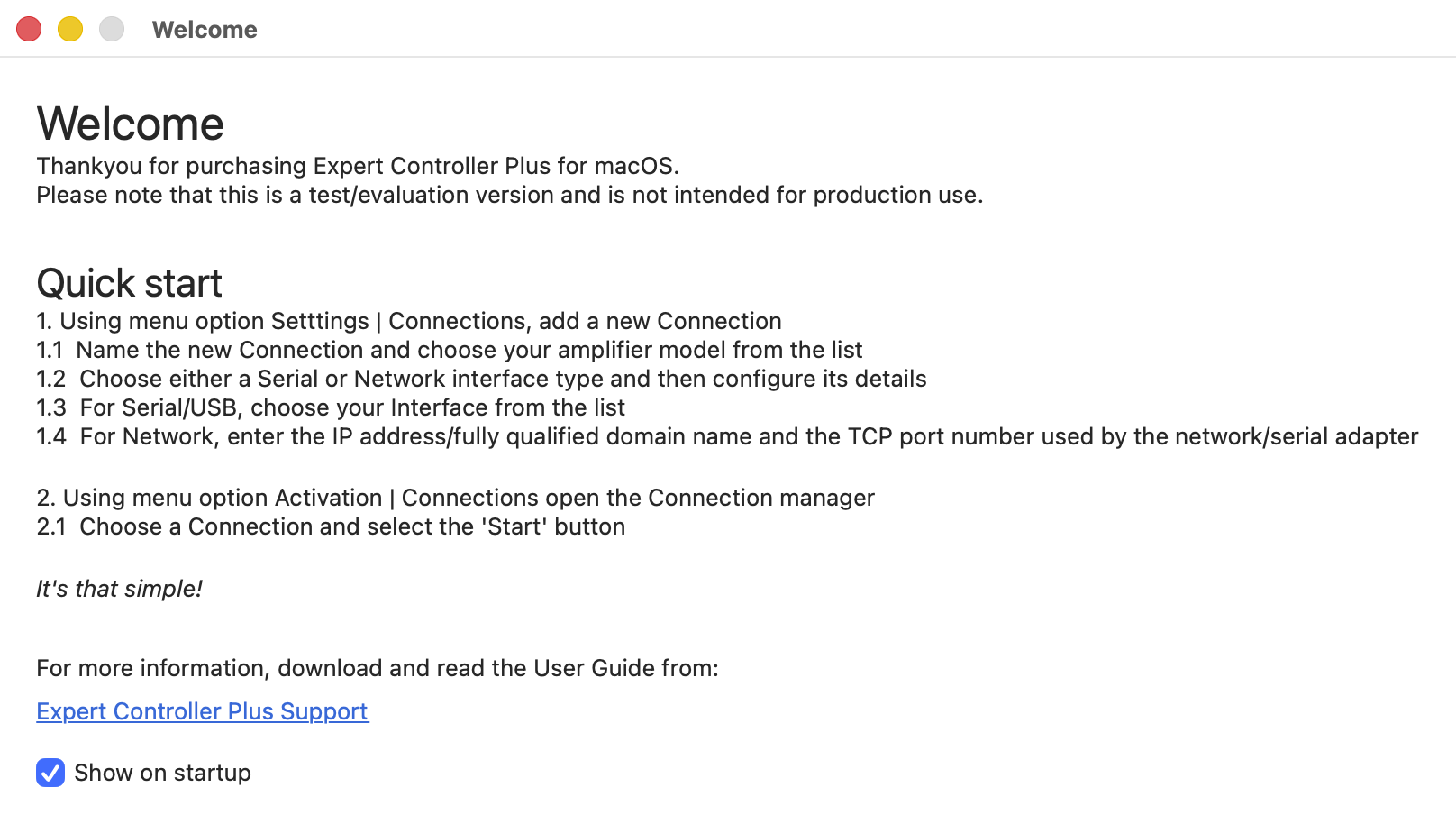
When Expert Controller Plus is first started it presents a Welcome window that summarises the steps necessary to create and activate an amplifier connection. The window contains a ‘Show on start-up’ tick-box; when deselected the window is no longer presented on start-up. An example of this window is presented below: