Tag Archives: Remote operations

Modbus TCP & Waveshare POE ETH Relay (B)

Being able to control a relay using a TCP/IP network connection can be very useful and has many purposes including signalling, power control and monitoring. Today TCP/IP networking is the defacto networking technology used by almost all network capable technology. TCP/IP networks, with one in particular – the Internet – span the globe and are reachable from most locations by cable or radio (including satellite).

The Modbus protocol was first published in 1979 and has become the defacto standard for control and monitoring of industrial equipment. Sometime after its first publication a variant known as Modbus TCP was standardised for the exchange of Modbus messages over TCP networks. Modbus TCP and other variants are now available in small, inexpensive devices – such as those by Waveshare – to the mass market and thus hams.

In amateur radio there is a growing number of operators who choose to operate geographically remote from their radio equipment. Linking these two locations is inevitably a TCP/IP network. So, it should be no surprise that hams have a need to control equipment remotely and that Modbus and an abundance of inexpensive Modbus capable control devices can satisfy that need.

One such Modbus control device is the Waveshare Modbus POE ETH Relay (B) but there are many options available. It’s also quite possible to construct them oneself using a small computer such as a Raspberry Pi and software.
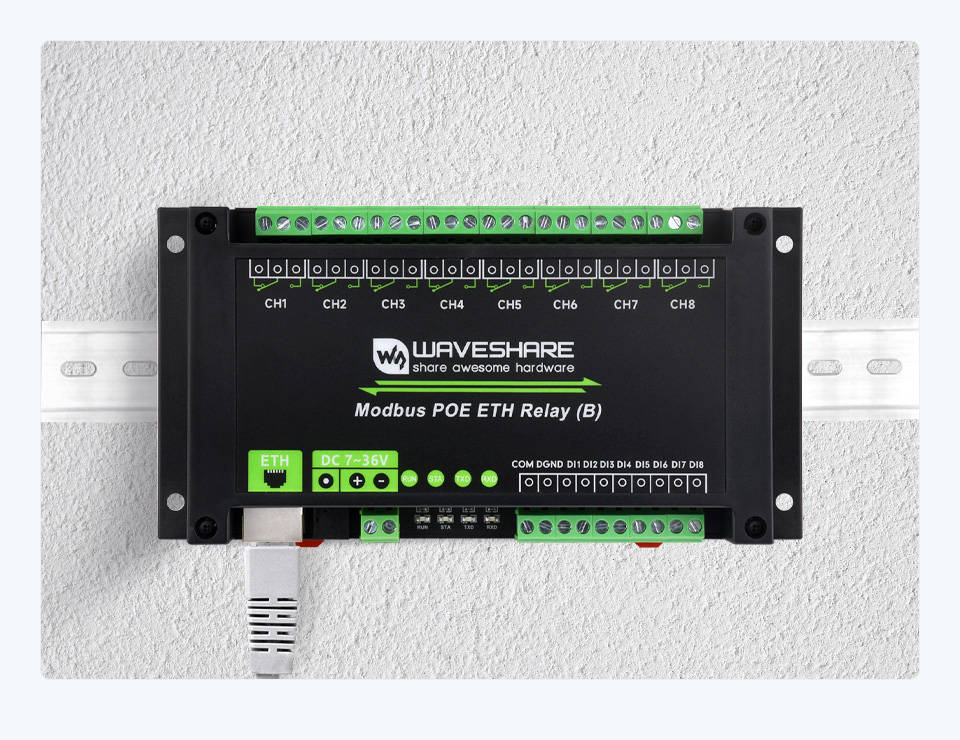
Waveshare Modbus POE ETH Relay (B)

Adding Modbus TCP support to Expert Controller Plus seemed like an obvious addition as it allows hams to wake/sleep their SPE Expert amplifiers from a remote location using a TCP/IP network.

The abundance of inexpensive Modbus capable controllers is the result of mass production with a focus on function with little attention to contributing and key components such as security. Connecting these to the Internet without protective measures is an awfully bad idea. I won’t labour that here as I’ve done so in previous posts and documentation. I’ll just say that however convenient doing so may seem and however tempted you feel – just don’t do it!

The remainder of this post focuses on the necessary configuration of the Waveshare Modbus POE ETH Relay (B) for use with macOS and Expert Controller Plus.

Waveshare Modbus POE ETH Relay (B)

The unit doesn’t come with a power supply so it’s either necessary to reuse an existing supply, make one yourself or power it from the Ethernet using POE. The latter is very convenient and makes a nice solution as should power fail, Ethernet and thus networking has probably also failed.

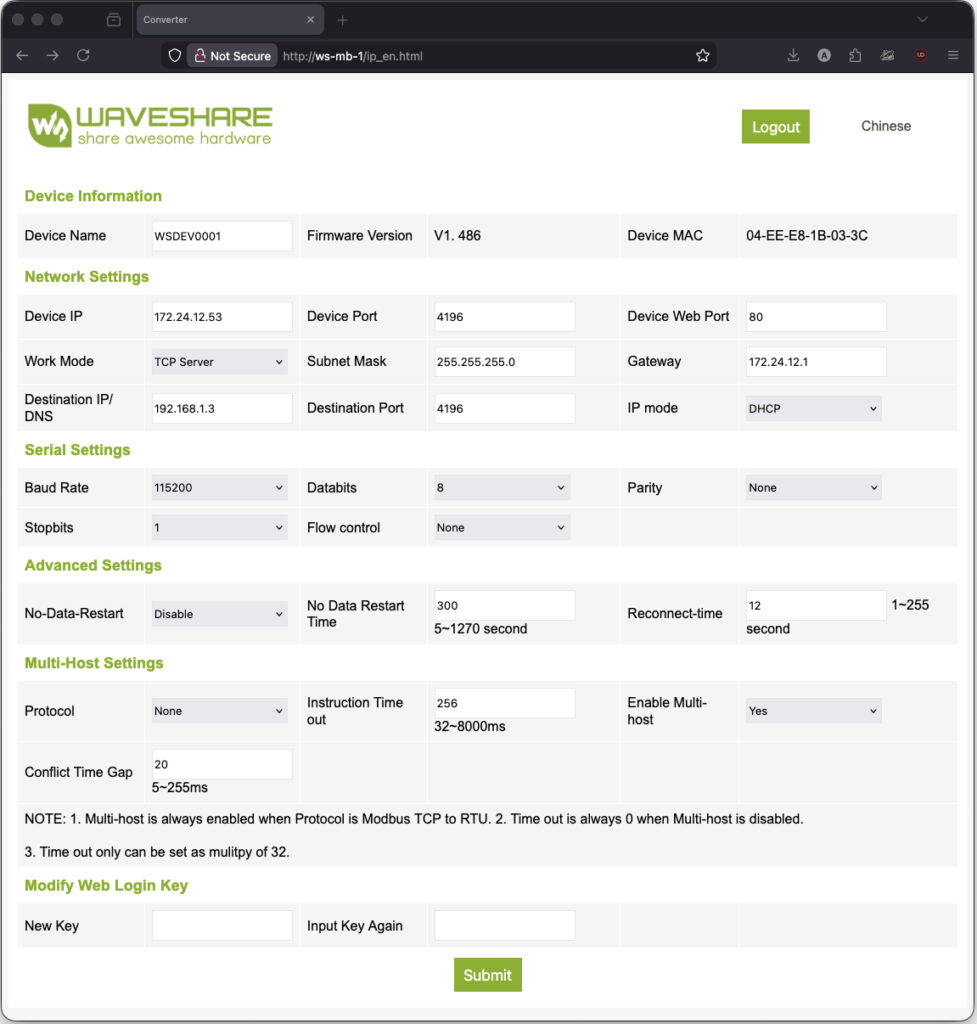
The unit has an embedded web server which permits its configuration. Great. However, not all parameters can be configured, particularly and disappointingly those necessary to enable Modbus TCP. Well, that’s what the Waveshare documentation leads me to believe but that documentation is a poor translation from Chinese to English so I’m not absolutely sure. From a macOS perspective that’s a problem as the Waveshare VCom software that enables access to all configuration is a Windows only application.

IPv4 address

The first item needing configuration was it’s IPv4 address. By default that is 192.168.1.200 and an IP address not reachable on my network. So it was connected using a short Ethernet cable directly to a laptop whose network port was manually allocated an 192.168.1.0/24 IPv4 address. That done, I could point a web browser at it’s default IPv4 address, log-in to its embedded web-server and change the IPv4 address allocation from Manual to DHCP. Allocating an address using DHCP is a personal choice as it has multiple advantages to a static, manual allocation but may not be appropriate for everyone.

With that and a restart, the unit was allocated an IPv4 address and became reachable on my network.
Microsoft Windows

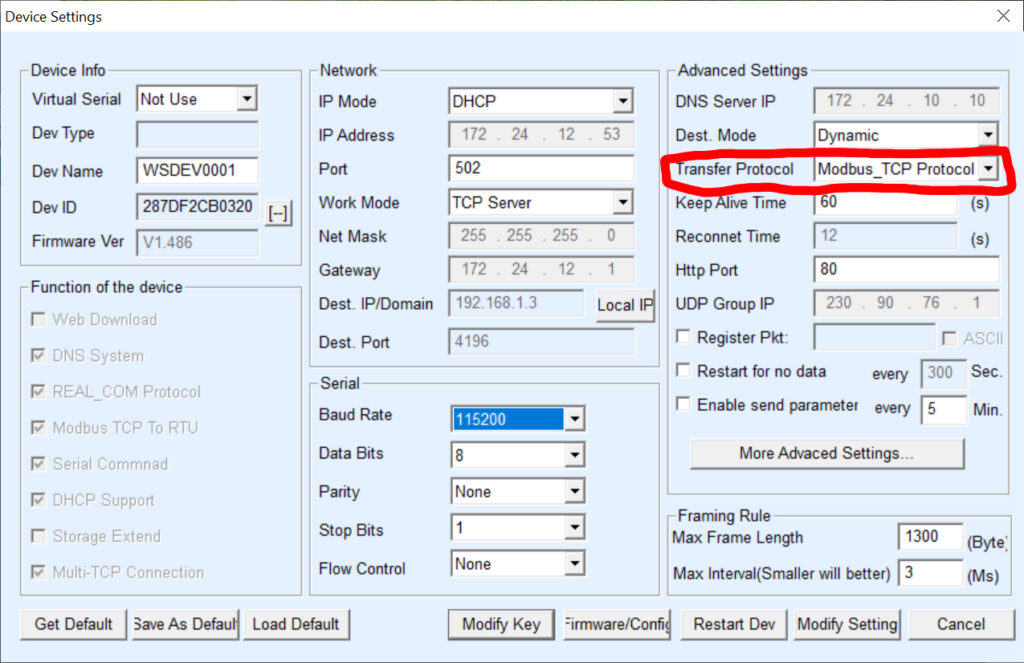
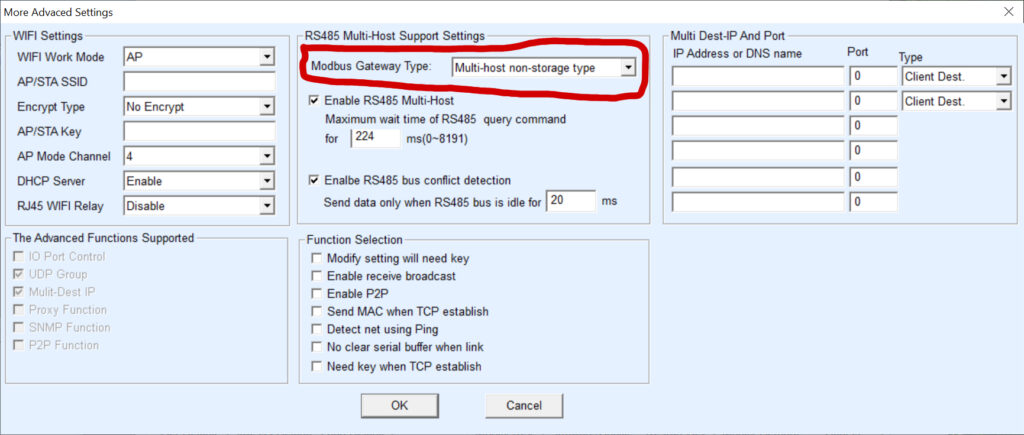
Here, I’m almost completely Apple and Linux with just one old macBook running Windows for just this type of scenario – where running a Windows application is the only option. After downloading and installing the Waveshare VCom software I was able to adjust and then save the two items of configuration needed – see images below – to enable Modbus TCP. Once saved, the unit remembered the change so Windows was no longer required.
Connecting an Expert amplifier

What remains is to connect the Waveshare relay to your SPE Expert amplifier and to pass a suitable signal (Voltage). Here the SPE Expert User manual for your amplifier is really helpful as it describes how to utilise pins 8 & 4 (REMOTE_ON, GND) of a CAT connector to “turn on and turn off the amplifier”. Instead of using the RS-232 DTR signal, implement a similar Voltage source which is switched by the Waveshare relay. The SPE Expert 1.5k-Taurus User manual V3.2, for pin 8, states: “Applying a voltage from 9 to 15 VDC, turns the amplifier ON.”.

Expert Controller Plus

The last configuration required is to enable Modbus TCP support in Expert Controller Plus, enable Wake and/or Sleep and to specify the Waveshare unit’s IPv4 address – or fully qualified domain name (FQDN). The defaults for Unit, Function, Register and Command should be appropriate for relay Channel 1. If a different relay Channel was used, select the corresponding Register.
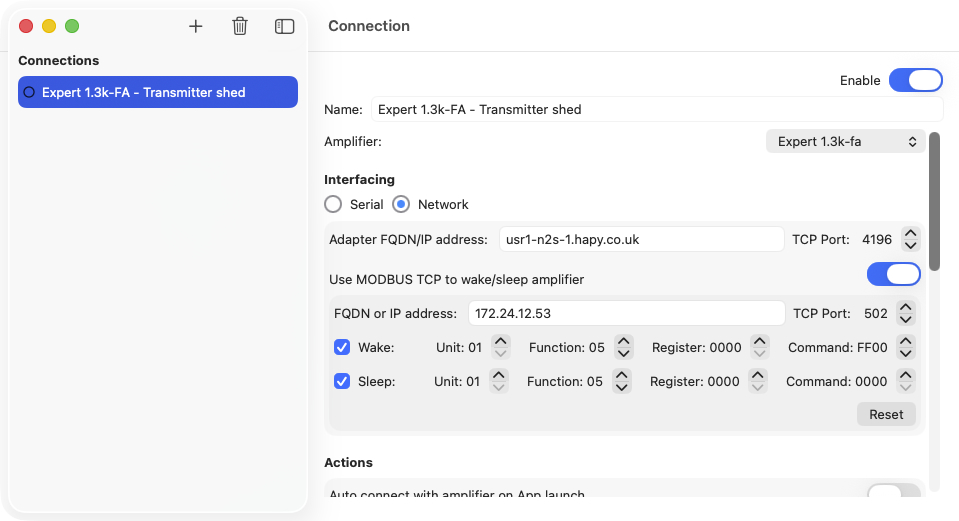
Now when a Connection is started or stopped in Expert Controller Plus the appropriate Wake or Sleep Modbus TCP message is sent.
USR-TCP232-306 Network/Serial adapter

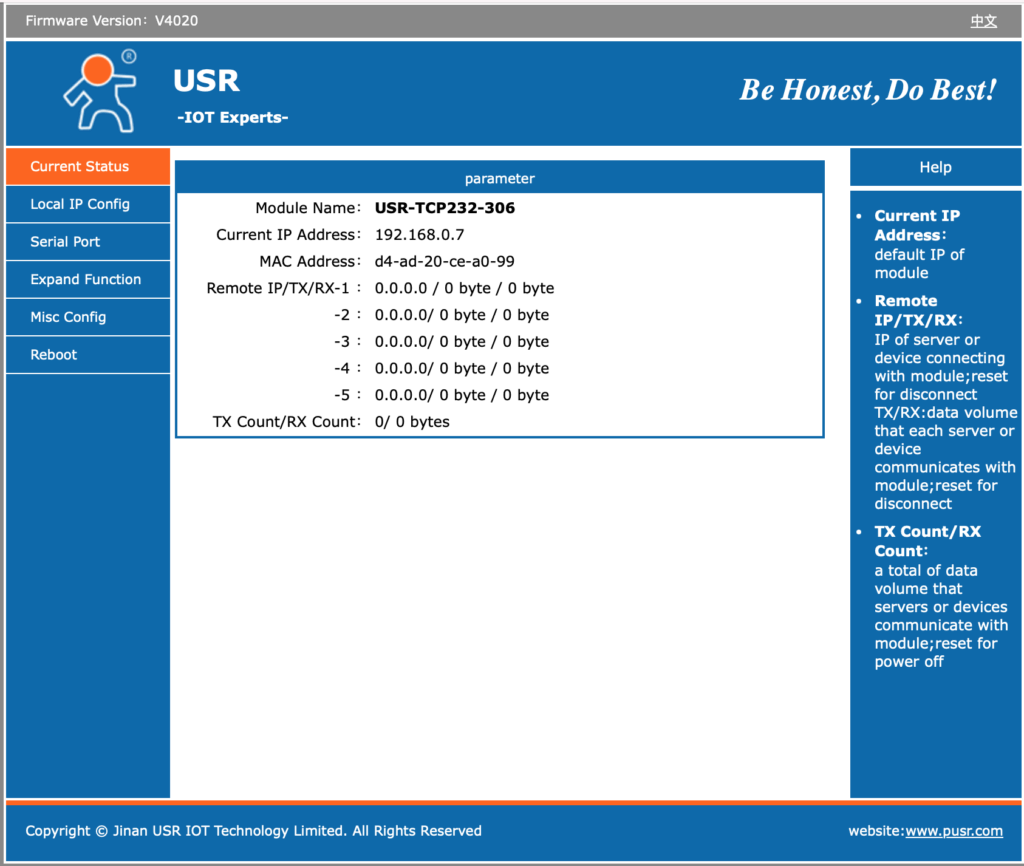
Amazon delivered a low-cost, Chinese network / serial adapter yesterday which I now have working successfully between a Mac and an SPE Expert 1.3k-fa amplifier. So, it’s now possible to confirm that Expert Controller and Expert Controller Plus work with both the Waveshare Rail-Mount Serial Server (RS232/485/422 to RJ45 Ethernet Module, with POE) and the PUSR, USR-TCP232-306.

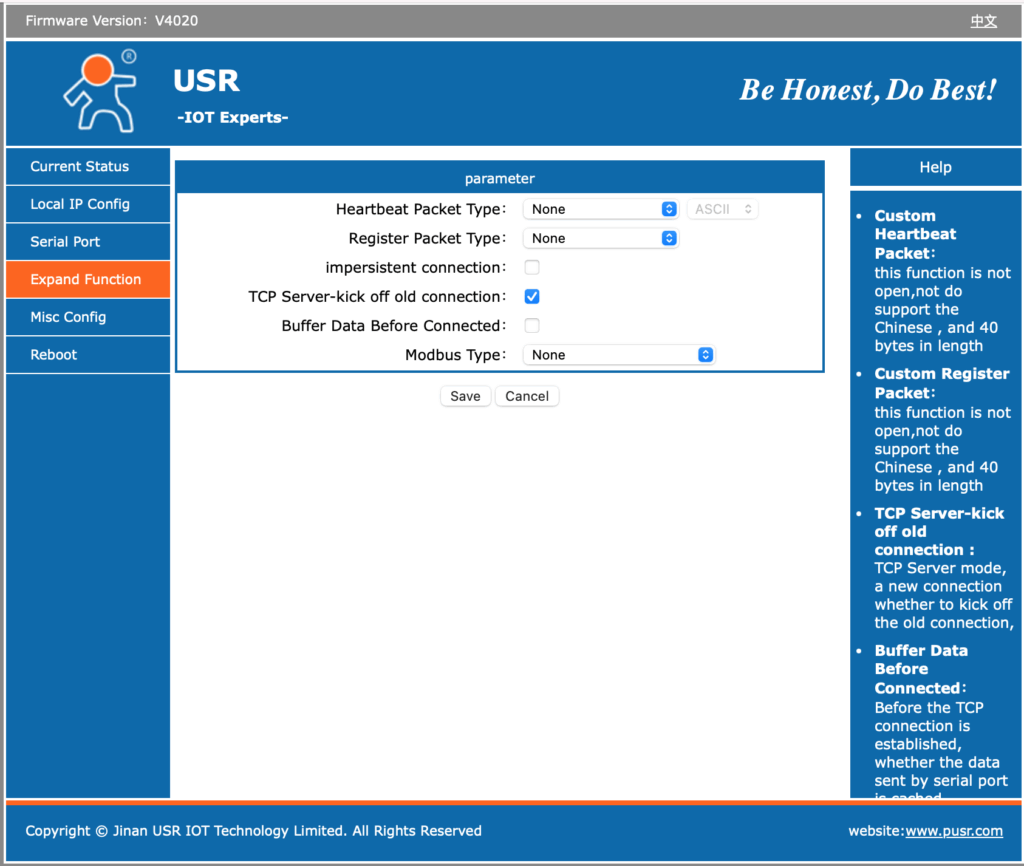
The USR-TCP232-306 is very clearly a device whose interface has been translated to English as much of the on-screen ‘Help’ information is quite meaningless. The following is just one example of several such messages: “Custom Register Packet: this function is not open, not do support the Chinese , and 40 bytes in length”.

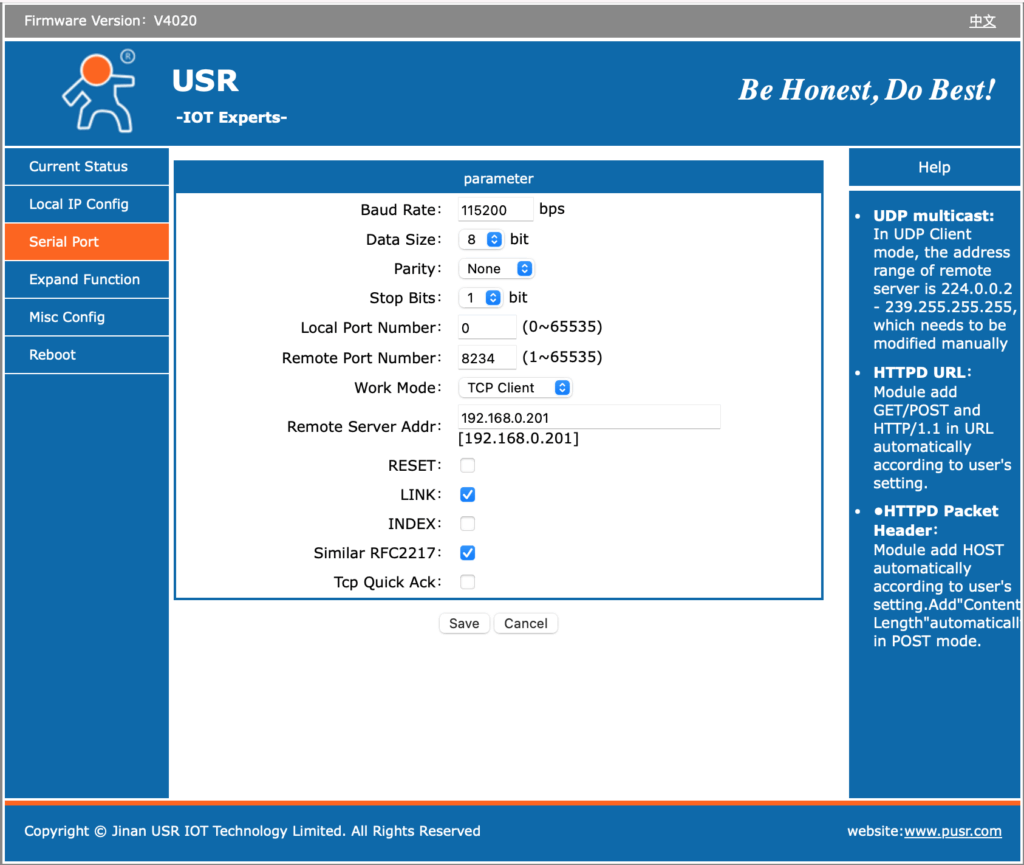
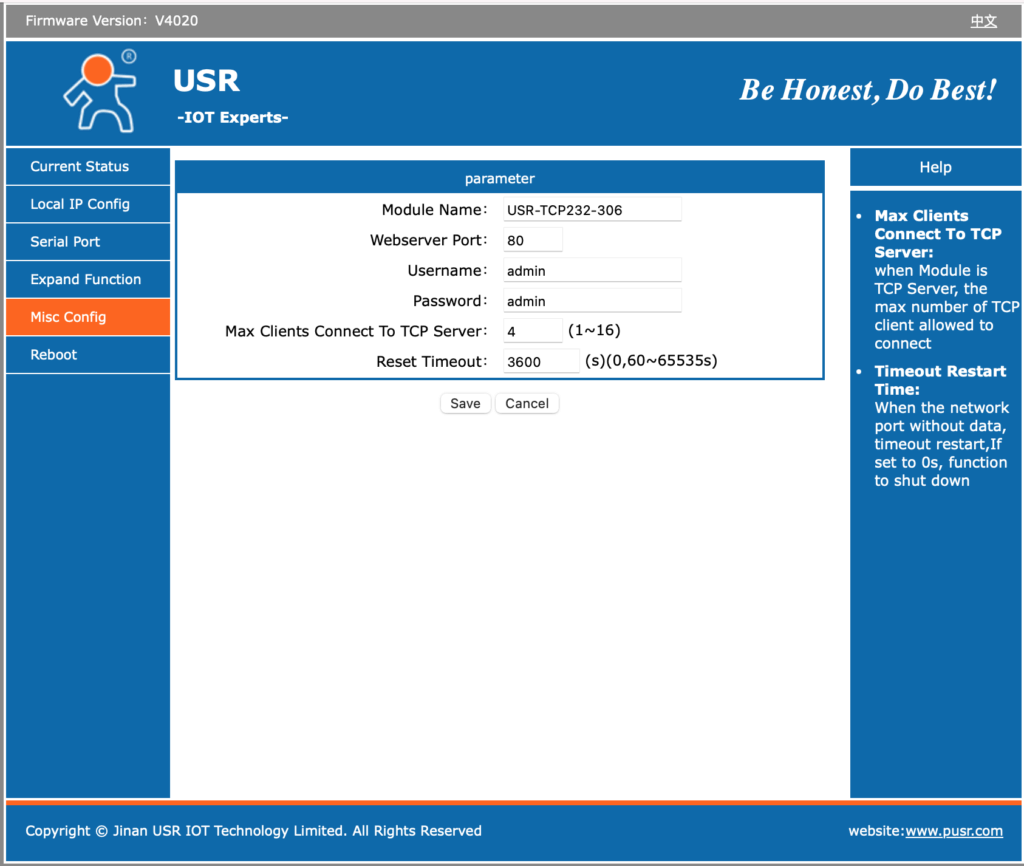
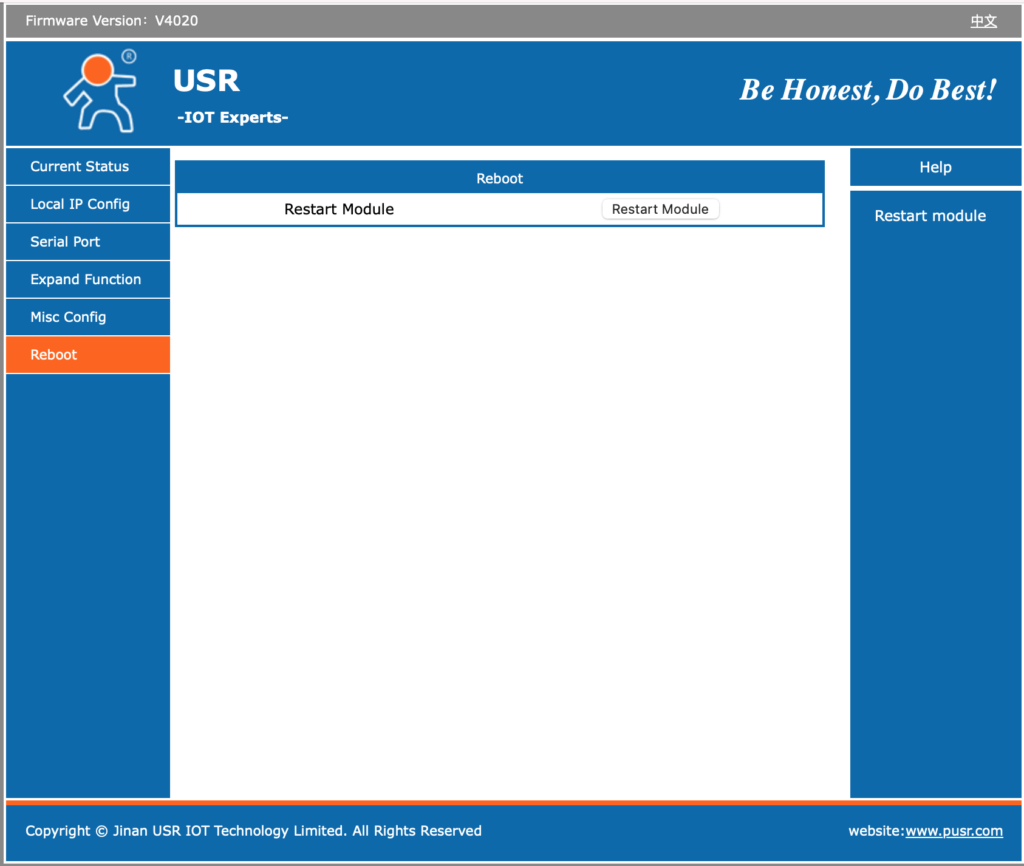
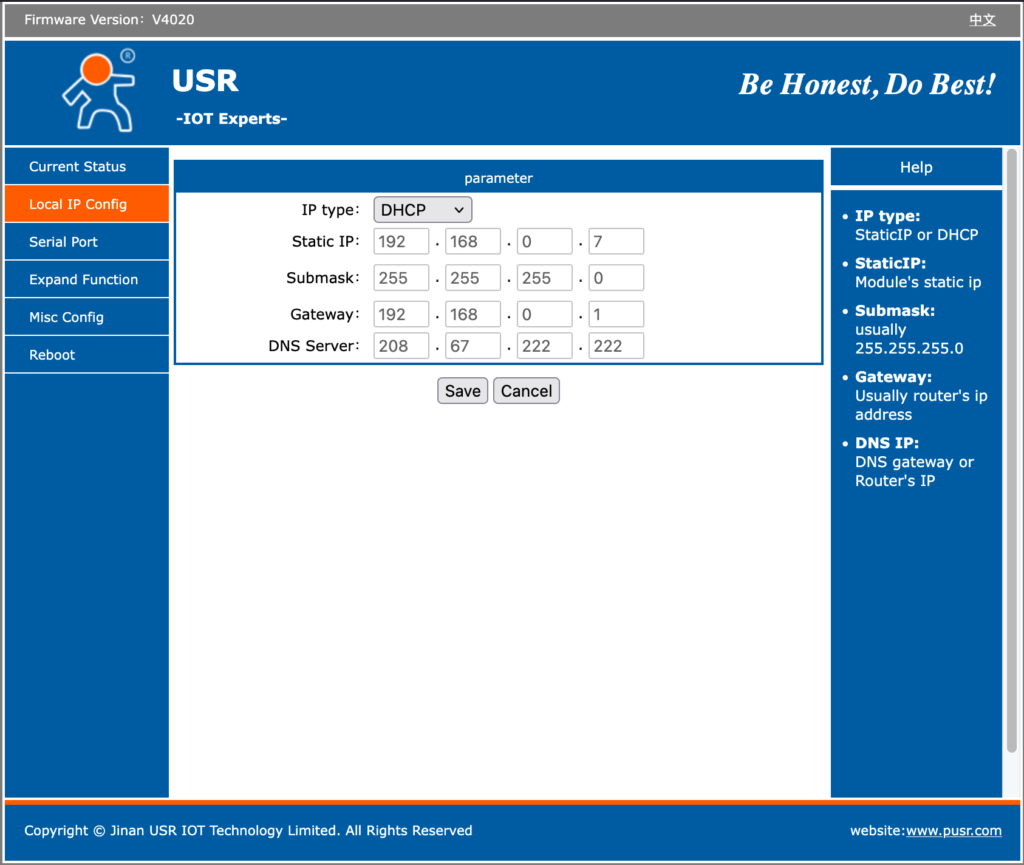
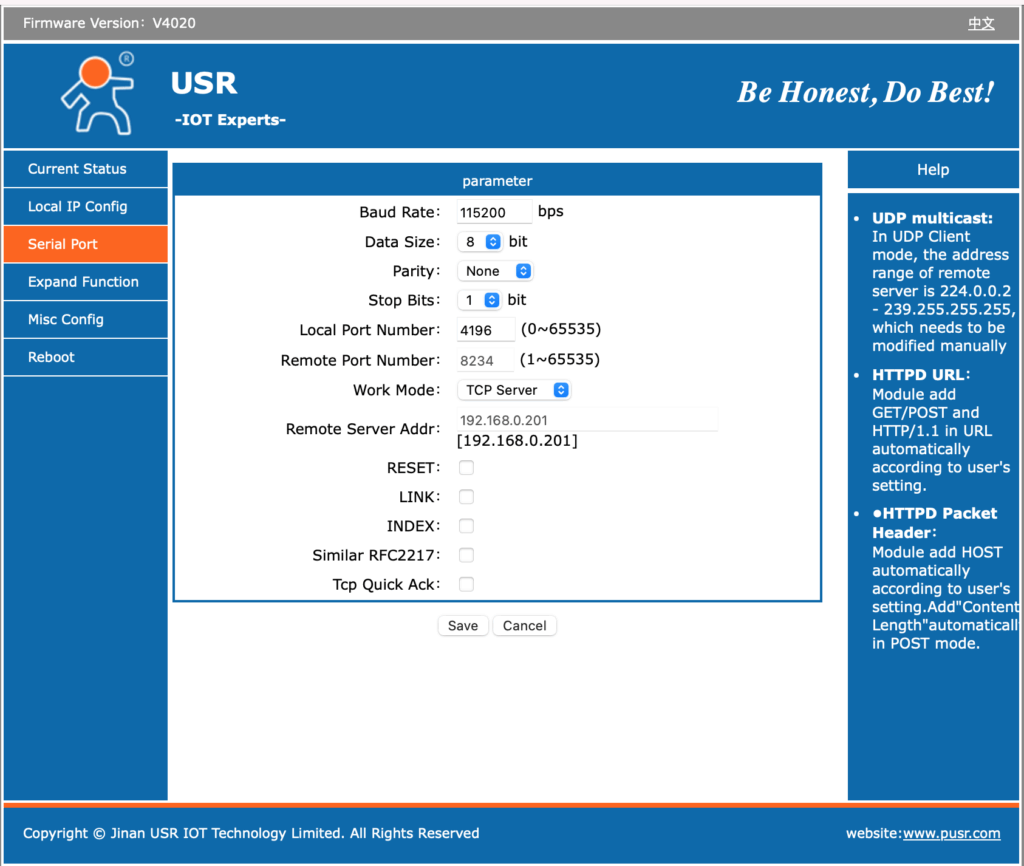
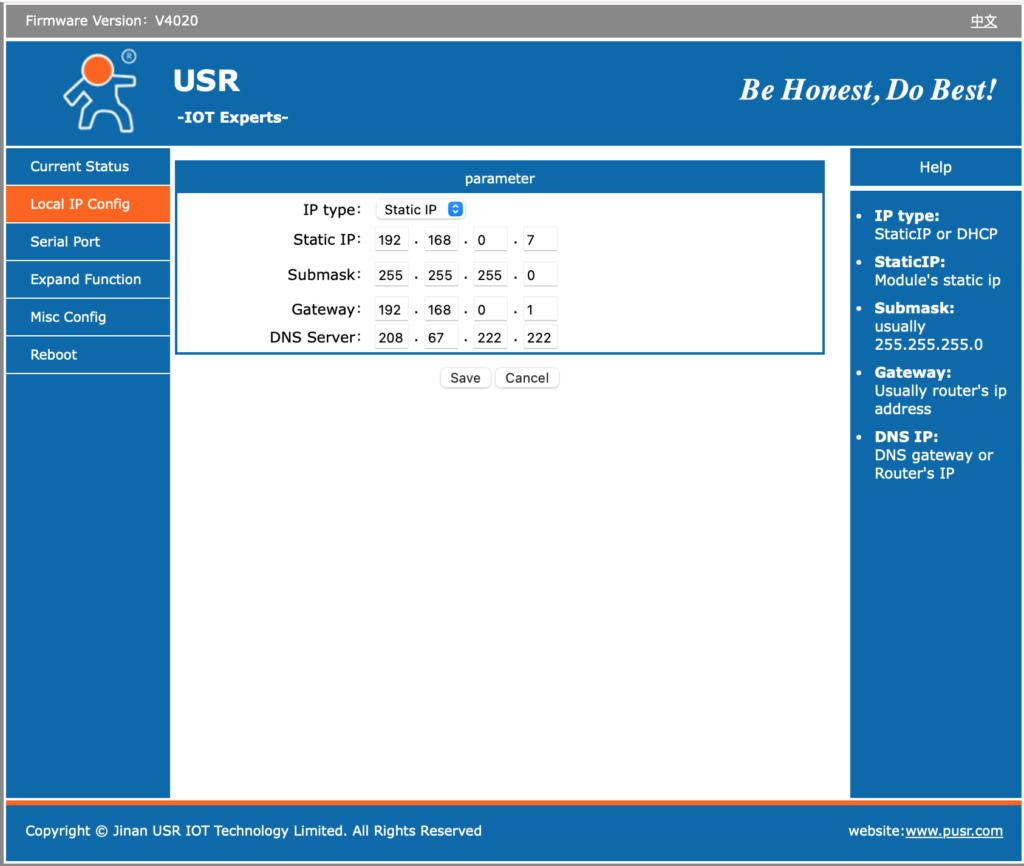
Below is a gallery of the six web pages it offers for configuration. Select an image to expand a larger view.

The above images show the default settings prior to any changes to support my needs. It is worth noting that on the underside of the adapter is a sticky label identifying its preset IPv4 address, MAC address and login credentials (username and password).

A word about security

The device only supports IPv4 and it’s web server implements an HTTP interface using TCP port 80. As such there is no encryption on its network interface. Its default username of ‘admin’ and password of ‘admin’ is also a very insecure baseline configuration. As all network traffic is unencrypted tho, there is little value in strong credentials.

There does not appear to be any support, using the web configurator, to apply firmware updates/patches. I see that as a good thing as devices such as these should not be left to query and download updates from the Internet unattended. Doing so would provide a door through which updates containing malicious or, at the very least, unwanted software could be introduced.

The web-configuration interface is simple and straightforward although its not clear what some options do even after reading the documentation. However, don’t assume what you see is the entire interface. I’d be willing to bet there are some undocumented web-pages in there too! A scan for open ports identified TCP listeners on ports 80, 1501 & 4196. The first (HTTP) and last (my config for network/serial data) are to be expected. However why is it listening on 1501? Perhaps this is how the PUSR, VCOM software connects? Unknown, but certainly worth ensuring that 1501/TCP is blocked by firewall rules.

Something that concerns me slightly is that it supports specification of a DNS server. Why does a simple network/serial adapter need to resolve DNS names? There may be a harmless reason, but it is possibly a hint that it contains some capability that requires this…

This adapter and any similar adapter, including the aforementioned Waveshare, should never be exposed to the Internet. If remote access is required always, protect its interface with a VPN, overlay network or deploy other protective measures. Furthermore, I would recommend that it be tightly fire-walled so that it cannot originate traffic to any LAN or WAN – including the Internet – endpoint. Incoming traffic should also be blocked to all but those ports absolutely necessary for it to fulfil its function.

The simple message is don’t assume these devices are friendly; treat them as hostile and a threat to your network and connected infrastructure.

Configuration

It is my choice to use DHCP and Dynamic DNS on my LAN as opposed to static IP addresses per device. I therefore, chose to configure my USR-TCP232-306 to use DHCP and made a Reservation within my DHCP servers for it’s MAC address. My DHCP servers will insert a name of my choice into DNS. DHCP can be selected on its ‘Local IP Config’ tab/page after which the specification of other network parameters is disabled but previous values remain on-screen. See the leftmost image in the gallery below.

The second image presents the serial config I chose and which works with my Expert 1.3k-fa amplifier. Note that I disabled: INDEX and Similar RFC2217 as I’m not absolutely clear what they do.

The ‘Local Port Number’ contained a default value of ‘0’. That is not useful; the value I chose, 4196, was mearly for convenience and could have been anything greater than 1024.

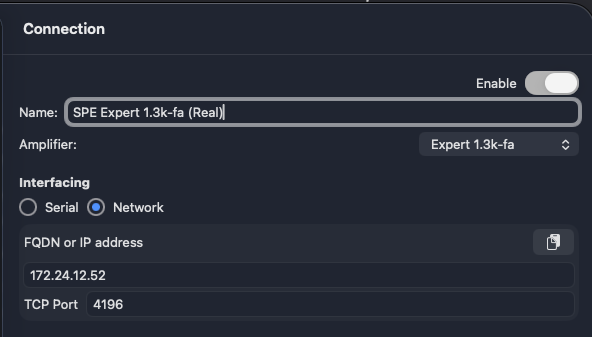
As my DHCP configuration supplies the USR-TCP232-306 with an IP address of 172.24.12.52 and its ‘Local Port Number’ is configured to 4196, I configured Expert Controller Plus as shown in the snipped below. Expert Controller config would be the same. Note: I could equally have supplied the Fully Qualified Domain Name (FQDN) I’ve chosen instead of the IPv4 address.

Serial cable wiring

The three-core cable I created for use with the Waveshare adapter worked just fine which was no surprise as both the USR-TCP232-306 and Waveshare implement a DTE interface. For cable wiring details please read my guide to serial cable wiring.

Final thoughts

Like the Waveshare adapter, the USR-TCP232-306 does not implement hardware flow control and so RTS/CTS and DTR/DSR are not available. I’m aware that some use RTS to signal an amplifier to awaken; that capability will therefore not work and an alternative will be necessary.

A major issue with the Waveshare adapter is a deficient DHCP protocol implementation. I’ve posted about this before but it simply does not renew an address lease either before or on expiration. That is a major problem if you are using DHCP. I’m glad to report that the USR-TCP232-306 does not have this defect. If anything it seems to renew its address more frequently than necessary, with renewal requests hourly regardless of the lease duration!

Andy

Waveshare Net/Serial adapter issues

This is just a short post to alert users of my SPE Expert Controller App that the Waveshare network / serial adapter, specifically model “RS232/485/422 To RJ45 Ethernet Module, TCP/IP To Serial, with POE Function”, firmware V1.452 appears to have what I consider a defect in its DHCP implementation. I wanted to make those who have this device or who are thinking about purchasing this device aware.

Firstly let me give a brief overview of DHCP. When a client using DHCP starts it broadcasts a DHCP Discover message to identify DHCP servers. A server receiving this will Offer an IP address plus other network config information to the client. With this information the client will Request the IP addressing information it wishes to use (as several servers could have responded) and the corresponding server will send an Acknowledgement.

The IP address information Offered has a lease time, a validity time if you like. Once the lease expires the client should no longer use that address information. What a client should do is renew the lease prior to its expiry, often at a period equating to half the lease duration.

OK, with that knowledge I can now say that my Waveshare adapter correctly obtains its IP information on power-on. But it does not appear to respect the lease time so simply continues to use the IP information beyond its lease period / validity period. It does not attempt to renew the lease either.

So what’s the impact of this? Well, two things spring to mind, neither good. As the DHCP server never sees a renewal it expires the IP address and is then within its rights to offer the same address to another client. This results in two devices with the same IP address! That’s going to cause problems. Secondly, its common to configure DHCP servers to push name information to DNS when they allocate an address and to remove that information from DNS when a lease expires. As the Waveshare adapter doesn’t renew the lease my DNS server removes its name from DNS when the lease expires. So name resolution no longer works!

This is not the first time I’ve observed this sort of behavior but its been a few years and that device was another cheap and cheerful Chinese piece of IoT kit.

So, if you have your Waveshare adapter configured to use DHCP and are seeing some hard-to-explain issues, check whether there are two devices using the same IP. If DNS lookups of the Waveshare device are failling after a while (after the lease time) then this is likely the cause.

Andy