Being able to control a relay using a TCP/IP network connection can be very useful and has many purposes including signalling, power control and monitoring. Today TCP/IP networking is the defacto networking technology used by almost all network capable technology. TCP/IP networks, with one in particular – the Internet – span the globe and are reachable from most locations by cable or radio (including satellite).
The Modbus protocol was first published in 1979 and has become the defacto standard for control and monitoring of industrial equipment. Sometime after its first publication a variant known as Modbus TCP was standardised for the exchange of Modbus messages over TCP networks. Modbus TCP and other variants are now available in small, inexpensive devices – such as those by Waveshare – to the mass market and thus hams.
In amateur radio there is a growing number of operators who choose to operate geographically remote from their radio equipment. Linking these two locations is inevitably a TCP/IP network. So, it should be no surprise that hams have a need to control equipment remotely and that Modbus and an abundance of inexpensive Modbus capable control devices can satisfy that need.
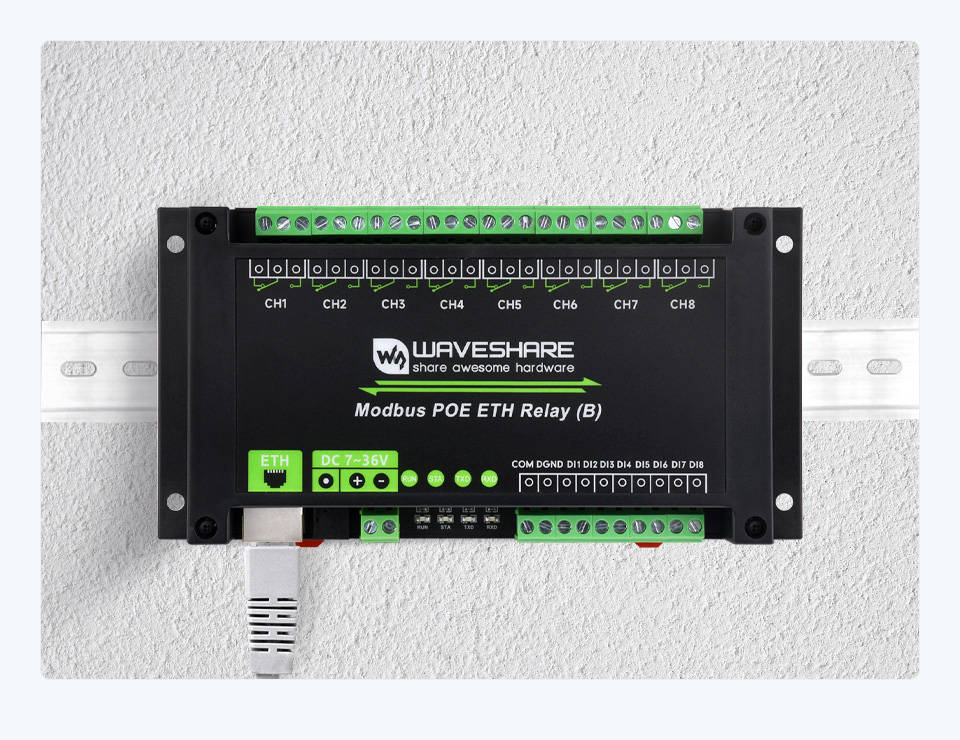
One such Modbus control device is the Waveshare Modbus POE ETH Relay (B) but there are many options available. It’s also quite possible to construct them oneself using a small computer such as a Raspberry Pi and software.
Adding Modbus TCP support to Expert Controller Plus seemed like an obvious addition as it allows hams to wake/sleep their SPE Expert amplifiers from a remote location using a TCP/IP network.
The abundance of inexpensive Modbus capable controllers is the result of mass production with a focus on function with little attention to contributing and key components such as security. Connecting these to the Internet without protective measures is an awfully bad idea. I won’t labour that here as I’ve done so in previous posts and documentation. I’ll just say that however convenient doing so may seem and however tempted you feel – just don’t do it!
The remainder of this post focuses on the necessary configuration of the Waveshare Modbus POE ETH Relay (B) for use with macOS and Expert Controller Plus.
Waveshare Modbus POE ETH Relay (B)
The unit doesn’t come with a power supply so it’s either necessary to reuse an existing supply, make one yourself or power it from the Ethernet using POE. The latter is very convenient and makes a nice solution as should power fail, Ethernet and thus networking has probably also failed.
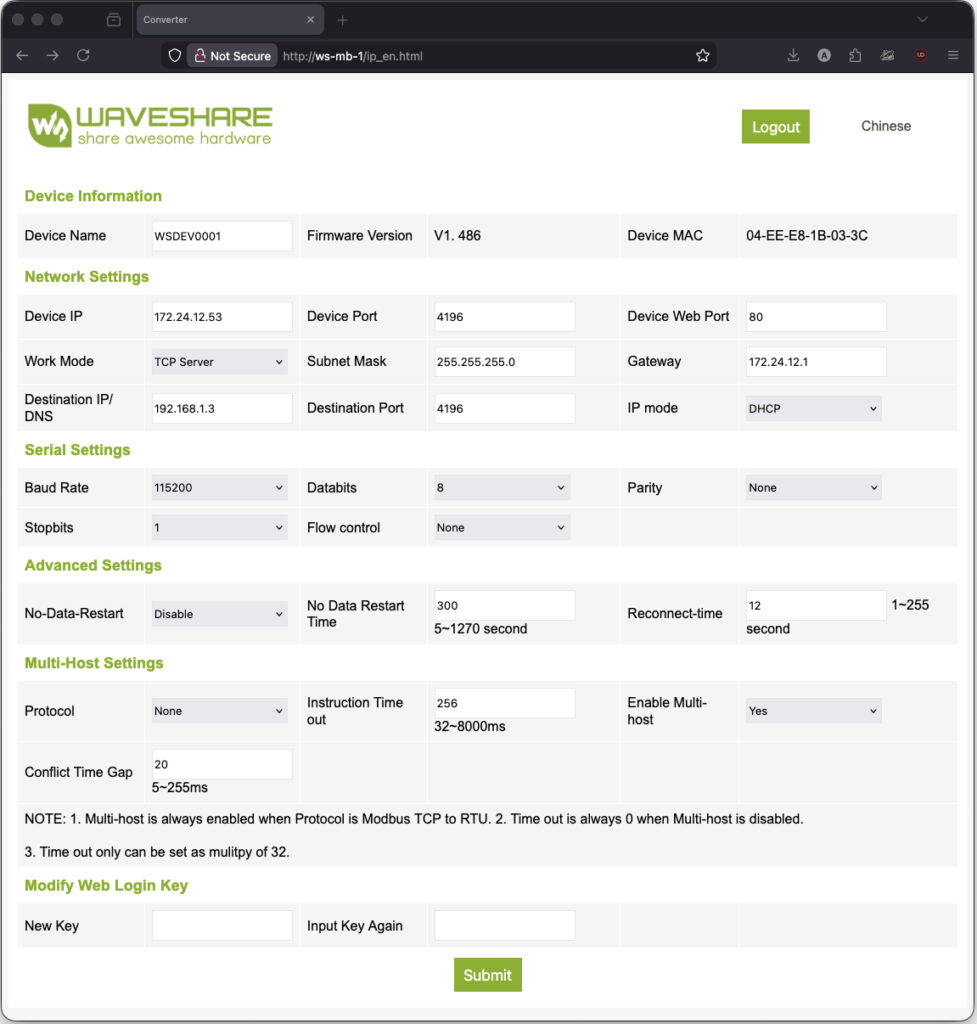
The unit has an embedded web server which permits its configuration. Great. However, not all parameters can be configured, particularly and disappointingly those necessary to enable Modbus TCP. Well, that’s what the Waveshare documentation leads me to believe but that documentation is a poor translation from Chinese to English so I’m not absolutely sure. From a macOS perspective that’s a problem as the Waveshare VCom software that enables access to all configuration is a Windows only application.
IPv4 address
The first item needing configuration was it’s IPv4 address. By default that is 192.168.1.200 and an IP address not reachable on my network. So it was connected using a short Ethernet cable directly to a laptop whose network port was manually allocated an 192.168.1.0/24 IPv4 address. That done, I could point a web browser at it’s default IPv4 address, log-in to its embedded web-server and change the IPv4 address allocation from Manual to DHCP. Allocating an address using DHCP is a personal choice as it has multiple advantages to a static, manual allocation but may not be appropriate for everyone.
With that and a restart, the unit was allocated an IPv4 address and became reachable on my network.
Microsoft Windows
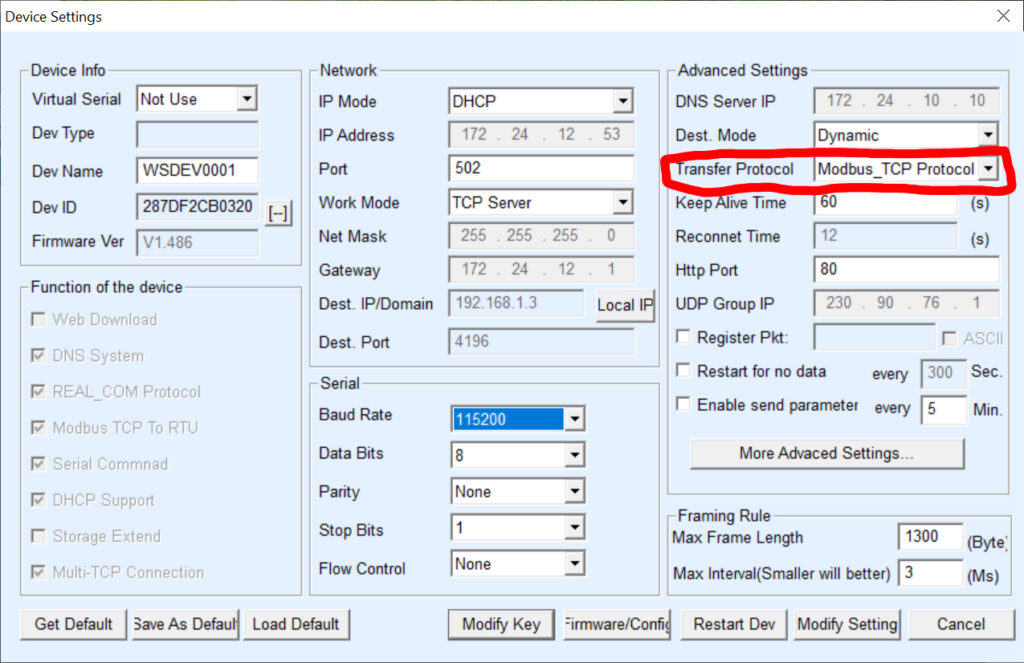
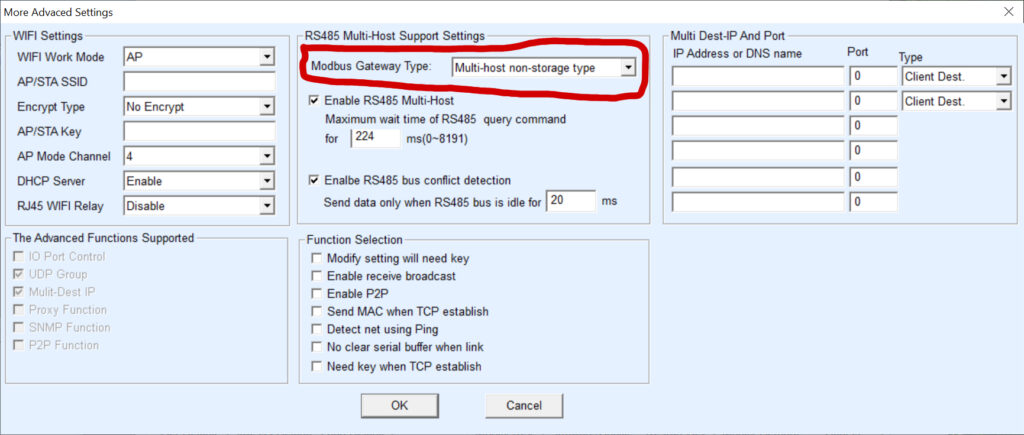
Here, I’m almost completely Apple and Linux with just one old macBook running Windows for just this type of scenario – where running a Windows application is the only option. After downloading and installing the Waveshare VCom software I was able to adjust and then save the two items of configuration needed – see images below – to enable Modbus TCP. Once saved, the unit remembered the change so Windows was no longer required.
Connecting an Expert amplifier
What remains is to connect the Waveshare relay to your SPE Expert amplifier and to pass a suitable signal (Voltage). Here the SPE Expert User manual for your amplifier is really helpful as it describes how to utilise pins 8 & 4 (REMOTE_ON, GND) of a CAT connector to “turn on and turn off the amplifier”. Instead of using the RS-232 DTR signal, implement a similar Voltage source which is switched by the Waveshare relay. The SPE Expert 1.5k-Taurus User manual V3.2, for pin 8, states: “Applying a voltage from 9 to 15 VDC, turns the amplifier ON.”.
Expert Controller Plus
The last configuration required is to enable Modbus TCP support in Expert Controller Plus, enable Wake and/or Sleep and to specify the Waveshare unit’s IPv4 address – or fully qualified domain name (FQDN). The defaults for Unit, Function, Register and Command should be appropriate for relay Channel 1. If a different relay Channel was used, select the corresponding Register.
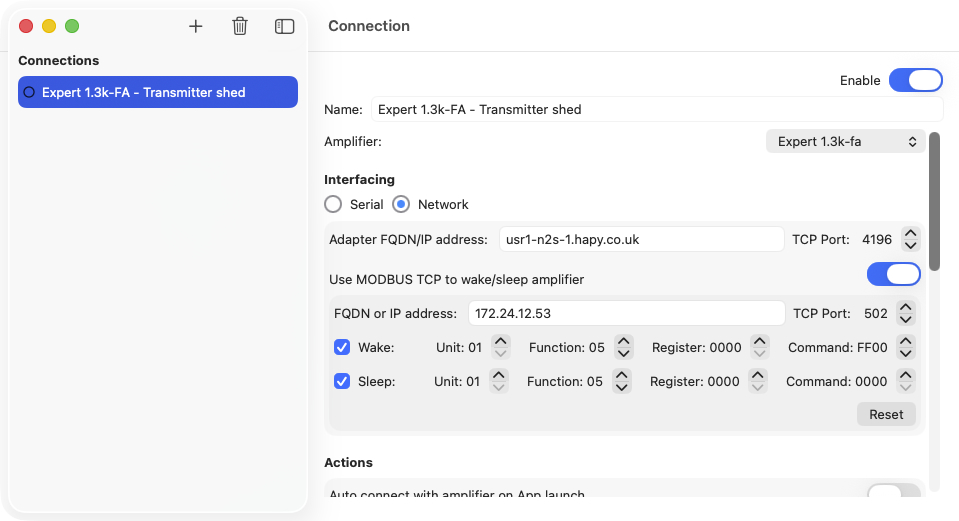
Now when a Connection is started or stopped in Expert Controller Plus the appropriate Wake or Sleep Modbus TCP message is sent.