In the latest Alpha test release of Expert Controller Plus (v0.4.0-620) there is now a window for each amplifier Connection that presents the forward RF Power, PA Volts, PA Amps and temperatures as reported by an Expert amplifier. The window is available from the ‘New’, top-level menu.
Expert Controller Plus – Gauges (Expert 2k-fa)
The new Gauges window is also available for the Expert 1k-fa amplifier. As it reports only a single temperature, only one temperature gauge is shown.
Expert Controller Plus – Gauges (Expert 1k-fa)
Another small change, but one that saves a little screen/display real-estate, is the removal of the text ‘Connection:’, a divider and a little white-space from all windows that allow selection of a Connection. The new design for these windows is reflected in the Gauges windows above.
This update is available through the ‘Check for updates…’ capability added in the previous release or as a new download from the downloads page.
I’m seeking testers, with any Expert amplifier but especially an Expert 1k-fa so, If you would like to get involved with testing and provide feedback please drop me a message using the Contact page on this website.
Further information about Expert Controller Plus including how to download the software can be found in the Software and Support sections of this website.
Expert Controller Plus v0.3.0-612 includes the ability to check for updates using the new ‘Check for Updates…’ menu-bar option. On its selection, the App checks to see if a newer version is available and if identified, downloads the update and starts the installation process. Installation requires user authorisation which must be granted for it to complete.
Check for Updates…
Additionally, the new update function also supports automatic checks for a later version and the ability to automatically download and install updates. The image below presents an example of a window notifying that an update is available.
Check for Updates – A new version is available
Also included in this update are improvements to Apple Voiceover descriptions for Stepper aka Spinner controls. These are predominately used in Connection settings but are also in the Application settings.
The previous version introduced keyboard shortcuts for the top-level menu, View | Announcements, Activation | Groups and Activation | Connections options. These keyboard shortcuts have been changed in this version to the following: Shift+Command+A, Shift+Command+G, Shift+Command+C.
I’m seeking testers, with any Expert amplifier but especially an Expert 1k-fa so, If you would like to get involved with testing and provide feedback please drop me a message using the Contact page on this website.
Further information about Expert Controller Plus including how to download the software can be found in the Software and Support sections of this website.
Today it’s the end of January 2026 and I’m making available Expert Controller Plus, Version 0.2.3, Build 566 for Alpha testing. It contains the following changes.
Keyboard shortcuts have been added to top-level menu options: Announcements, Activate | Groups and Activate | Connections
The Apple Voiceover labels and hints for buttons have been reviewed and updated.
Apple Voiceover now identifies keyboard shortcuts were they exist on buttons.
Four Keyboard shortcuts have been added to buttons in the Activate | Groups and Activate | Connections windows:
Start – Command-S
Stop – Command-T
Wake – Command-W
Sleep – Command-P
I’m looking for testers, especially for the Expert 1k-fa so, If you would like to get involved with testing and provide feedback please drop me a message using the Contact page on this website.
Further information about Expert Controller Plus including how to download the software can be found in the Software and Support sections of this website.
Version 1.3.0 of Expert Controller will be available in the Apple App Store in early January 2026. If your Mac is configured to download and install updates, no further actions will be necessary. For others, please visit the Updates section of the App Store, select the App and download to install. The update does not change any existing Settings so all will be retained, unchanged.
System requirements for Version 1.3.0 remain unchanged from earlier versions. So, an Apple Mac running either macOS 14, 15 or 26 and an SPE Expert 1.3k-FA or later amplifier.
Version 1.3.0 contains cosmetic changes so that its windows look great on macOS 26 and earlier versions along with some minor improvements to Accessibility and some bug fixes. It has a new icon which conforms to macOS 26 sizing requirements and whose design is common between Expert Controller and Expert Controller Plus.
What’s the difference between Expert Controller and Expert Controller Plus?
The list below summarises the changes in Expert Controller 1.3.0:
Iconography updated for macOS 26 and to align with that used by Expert Controller Plus.
The font used in the LCD window has been updated to resolve an issue with all bar-graphs not displaying their final character correctly.
The Backlight button has been replaced with two buttons that use a bulb icon. These icon buttons have been relocated to the lower-right side of the Controller window.
The Float button has been replaced with a new button using a Pin icon and relocated to the Title-bar of the Controller window.
The visual appearance of the Controller window has been updated to improve alignment with macOS 26 and earlier versions.
Buttons on the Controller window have been re-grouped to improve usability and align with the layout used by Expert Controller Plus.
The light and dark mode graphics of a stylised amplifier shown in the LCD panel when disconnected have been updated.
The application has been renamed ‘Expert Controller’ to align more clearly with the naming scheme used by the plus version – ‘Expert Controller Plus’.
To improve Accessibility, some buttons have either been relabelled or new Accessibility labels applied.
The ordering of items in the Announce / spoken-report has been adjusted.
The embedded User Guide and Release Note documents have been removed and replaced with links to https://g0rvm.uk from where the documents may be downloaded.
Below is a image presenting the updated Controller window on macOS 26.
Today I’m making available Expert Controller Plus, Version 0.2.2, Build 539 available for Alpha testing. It contains the following minor fixes.
A Connection cannot now be Disabled using the Settings | Connection window if it is in use.
The Amplifier selection may not be changed whilst its associated Connection is in use.
The references to web pages ‘News’ and ‘Support’ under the Help menu have been updated.
The Welcome window link to Support information at g0rvm.uk updated.
I’m looking for more testers, especially for the Expert 1k-fa so, If you would like to get involved with testing and provide feedback please drop me a message using the Contact page on this website.
Further information about Expert Controller Plus including how to download the software can be found in the Software and Support sections of this website.
Today I’m happy to announce that I’m making the first, Alpha test, version of Expert Controller Plus available for download.
If you would like to get involved with testing and provide feedback please drop me a message using the Contact page on this website.
Further information about Expert Controller Plus including how to download the software can be found in the Software and Support sections of this website.
Being able to control a relay using a TCP/IP network connection can be very useful and has many purposes including signalling, power control and monitoring. Today TCP/IP networking is the defacto networking technology used by almost all network capable technology. TCP/IP networks, with one in particular – the Internet – span the globe and are reachable from most locations by cable or radio (including satellite).
The Modbus protocol was first published in 1979 and has become the defacto standard for control and monitoring of industrial equipment. Sometime after its first publication a variant known as Modbus TCP was standardised for the exchange of Modbus messages over TCP networks. Modbus TCP and other variants are now available in small, inexpensive devices – such as those by Waveshare – to the mass market and thus hams.
In amateur radio there is a growing number of operators who choose to operate geographically remote from their radio equipment. Linking these two locations is inevitably a TCP/IP network. So, it should be no surprise that hams have a need to control equipment remotely and that Modbus and an abundance of inexpensive Modbus capable control devices can satisfy that need.
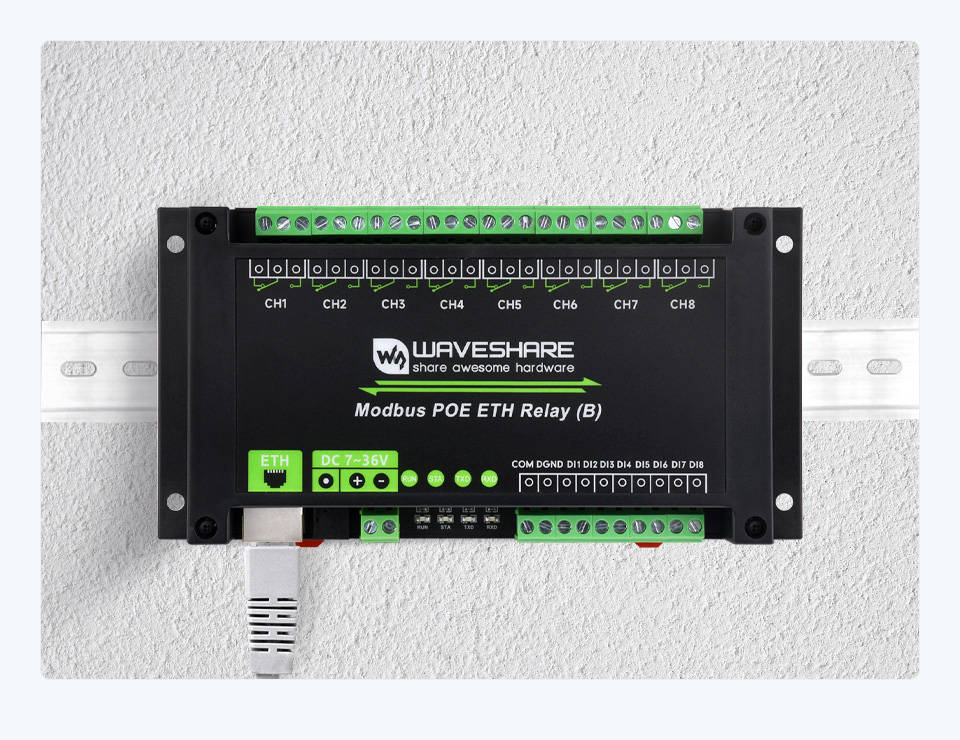
One such Modbus control device is the Waveshare Modbus POE ETH Relay (B) but there are many options available. It’s also quite possible to construct them oneself using a small computer such as a Raspberry Pi and software.
Waveshare Modbus POE ETH Relay (B)
Adding Modbus TCP support to Expert Controller Plus seemed like an obvious addition as it allows hams to wake/sleep their SPE Expert amplifiers from a remote location using a TCP/IP network.
The abundance of inexpensive Modbus capable controllers is the result of mass production with a focus on function with little attention to contributing and key components such as security. Connecting these to the Internet without protective measures is an awfully bad idea. I won’t labour that here as I’ve done so in previous posts and documentation. I’ll just say that however convenient doing so may seem and however tempted you feel – just don’t do it!
The remainder of this post focuses on the necessary configuration of the Waveshare Modbus POE ETH Relay (B) for use with macOS and Expert Controller Plus.
Waveshare Modbus POE ETH Relay (B)
The unit doesn’t come with a power supply so it’s either necessary to reuse an existing supply, make one yourself or power it from the Ethernet using POE. The latter is very convenient and makes a nice solution as should power fail, Ethernet and thus networking has probably also failed.
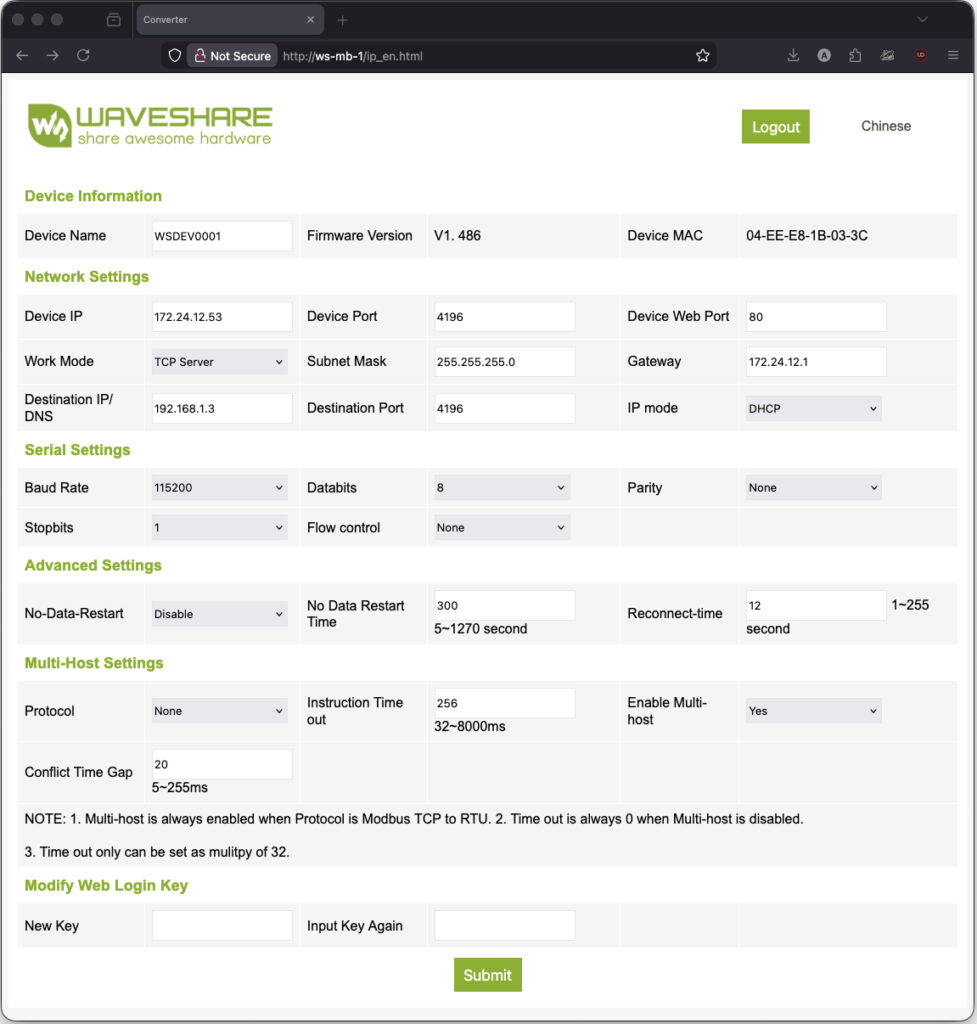
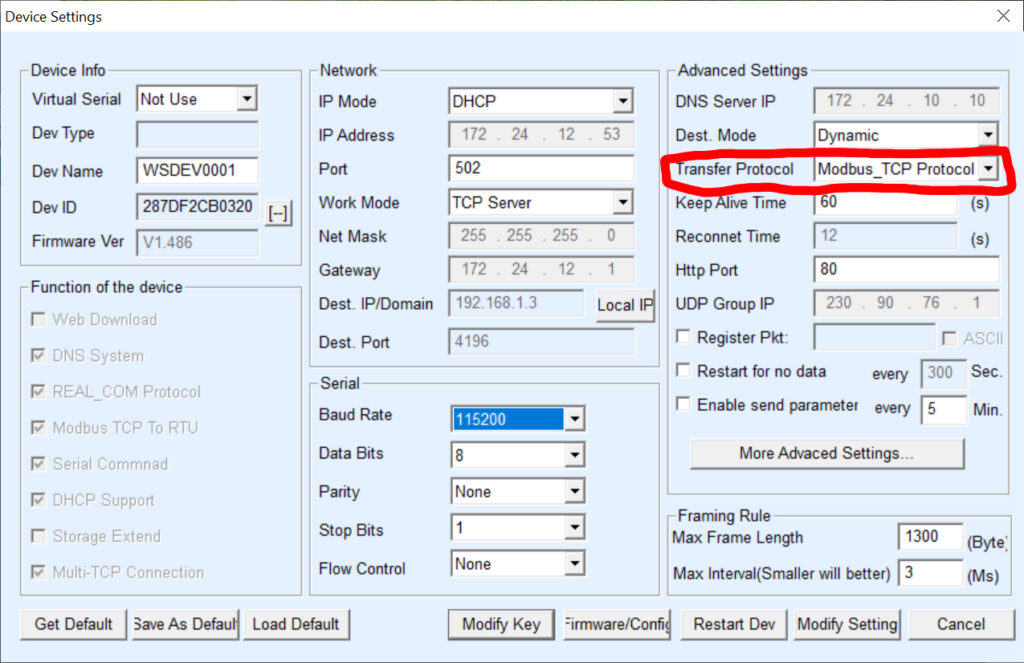
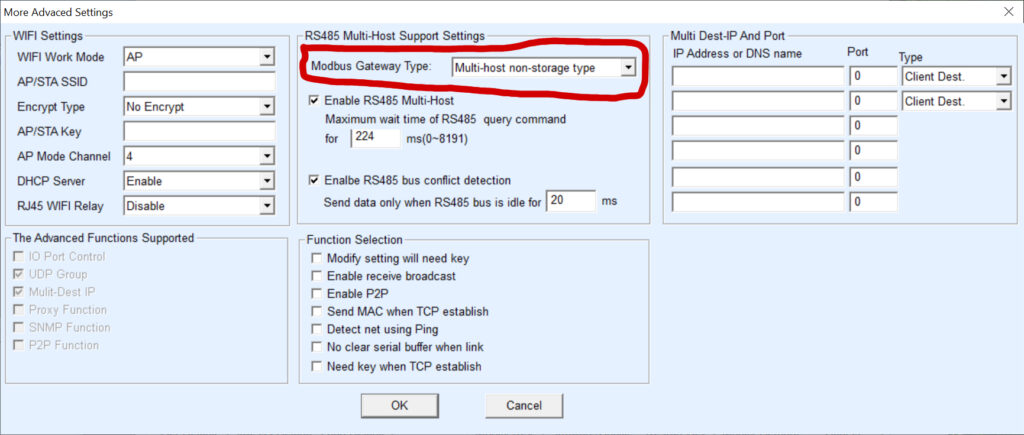
The unit has an embedded web server which permits its configuration. Great. However, not all parameters can be configured, particularly and disappointingly those necessary to enable Modbus TCP. Well, that’s what the Waveshare documentation leads me to believe but that documentation is a poor translation from Chinese to English so I’m not absolutely sure. From a macOS perspective that’s a problem as the Waveshare VCom software that enables access to all configuration is a Windows only application.
IPv4 address
The first item needing configuration was it’s IPv4 address. By default that is 192.168.1.200 and an IP address not reachable on my network. So it was connected using a short Ethernet cable directly to a laptop whose network port was manually allocated an 192.168.1.0/24 IPv4 address. That done, I could point a web browser at it’s default IPv4 address, log-in to its embedded web-server and change the IPv4 address allocation from Manual to DHCP. Allocating an address using DHCP is a personal choice as it has multiple advantages to a static, manual allocation but may not be appropriate for everyone.
With that and a restart, the unit was allocated an IPv4 address and became reachable on my network.
Waveshare Modbus POE ETH Relay (B) – Web configurator
Microsoft Windows
Here, I’m almost completely Apple and Linux with just one old macBook running Windows for just this type of scenario – where running a Windows application is the only option. After downloading and installing the Waveshare VCom software I was able to adjust and then save the two items of configuration needed – see images below – to enable Modbus TCP. Once saved, the unit remembered the change so Windows was no longer required.
What remains is to connect the Waveshare relay to your SPE Expert amplifier and to pass a suitable signal (Voltage). Here the SPE Expert User manual for your amplifier is really helpful as it describes how to utilise pins 8 & 4 (REMOTE_ON, GND) of a CAT connector to “turn on and turn off the amplifier”. Instead of using the RS-232 DTR signal, implement a similar Voltage source which is switched by the Waveshare relay. The SPE Expert 1.5k-Taurus User manual V3.2, for pin 8, states: “Applying a voltage from 9 to 15 VDC, turns the amplifier ON.”.
Expert Controller Plus
The last configuration required is to enable Modbus TCP support in Expert Controller Plus, enable Wake and/or Sleep and to specify the Waveshare unit’s IPv4 address – or fully qualified domain name (FQDN). The defaults for Unit, Function, Register and Command should be appropriate for relay Channel 1. If a different relay Channel was used, select the corresponding Register.
Expert Controller Plus – Modbus configuration
Now when a Connection is started or stopped in Expert Controller Plus the appropriate Wake or Sleep Modbus TCP message is sent.
Amazon delivered a low-cost, Chinese network / serial adapter yesterday which I now have working successfully between a Mac and an SPE Expert 1.3k-fa amplifier. So, it’s now possible to confirm that Expert Controller and Expert Controller Plus work with both the Waveshare Rail-Mount Serial Server (RS232/485/422 to RJ45 Ethernet Module, with POE) and the PUSR, USR-TCP232-306.
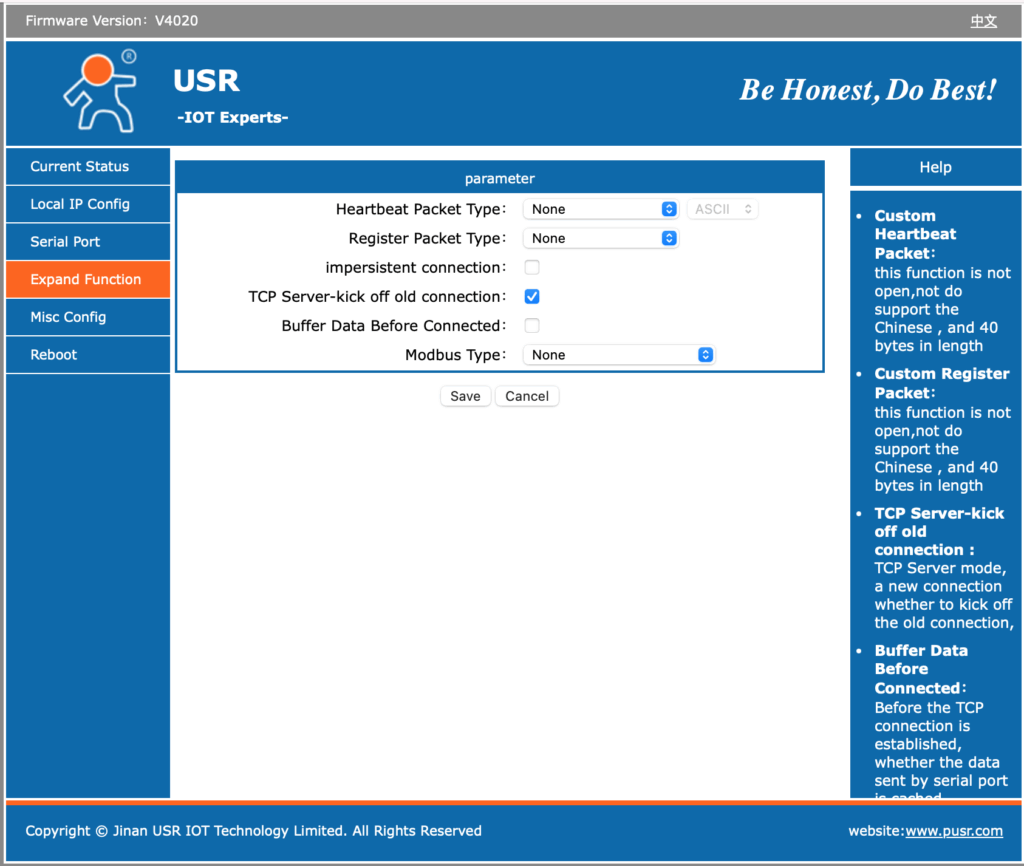
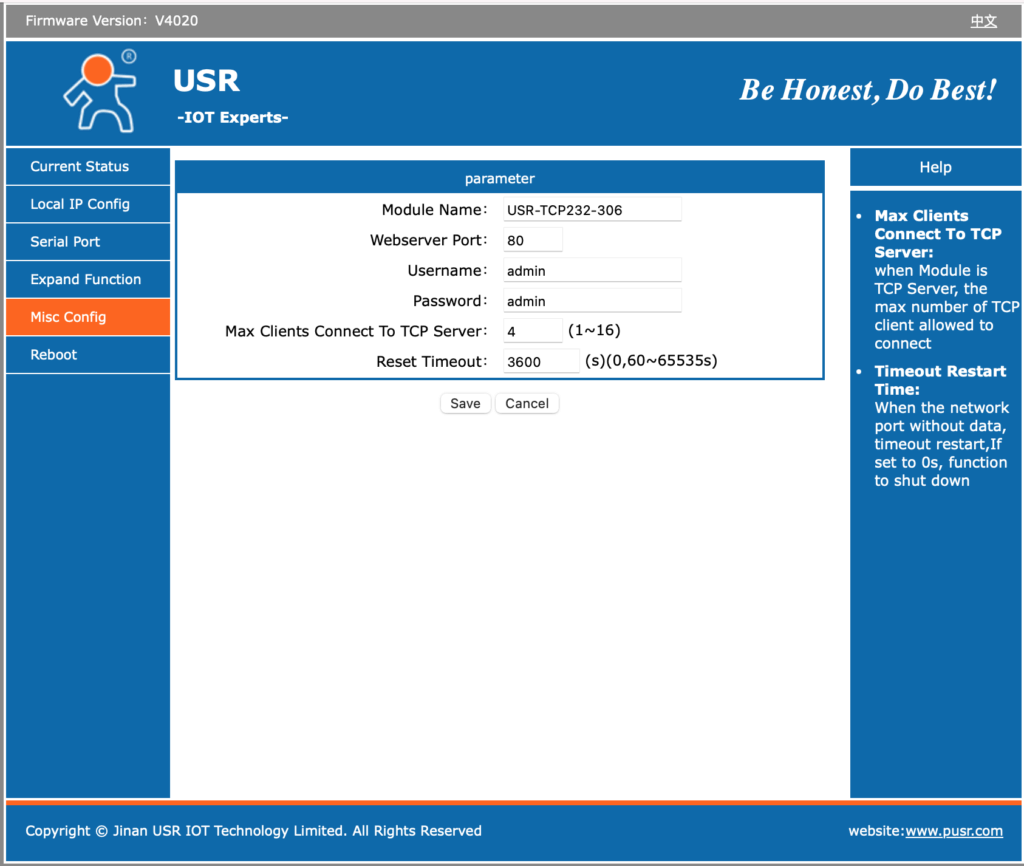
The USR-TCP232-306 is very clearly a device whose interface has been translated to English as much of the on-screen ‘Help’ information is quite meaningless. The following is just one example of several such messages: “Custom Register Packet: this function is not open, not do support the Chinese , and 40 bytes in length”.
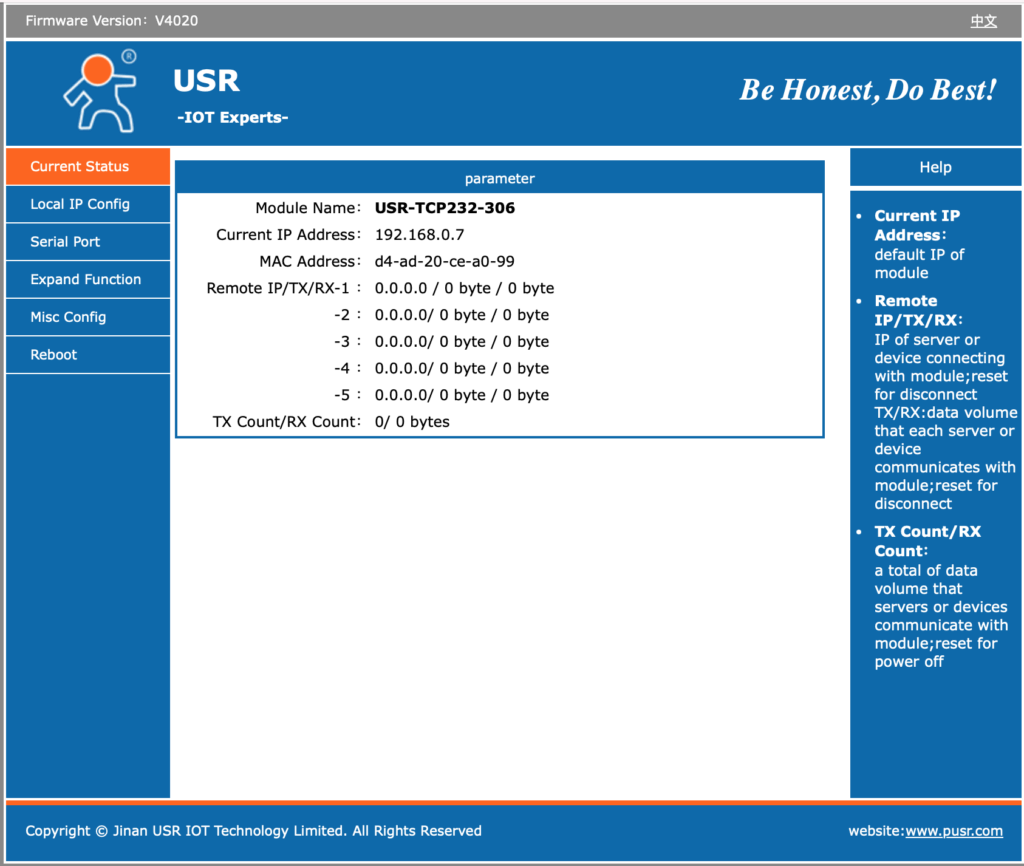
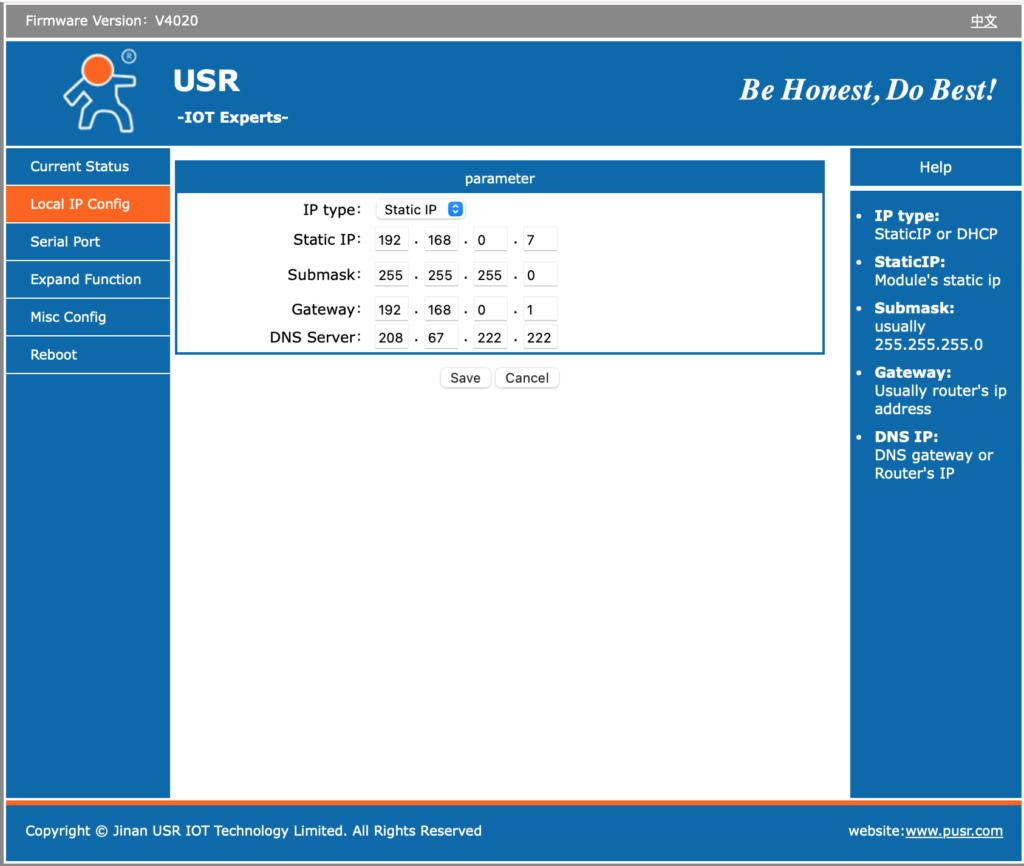
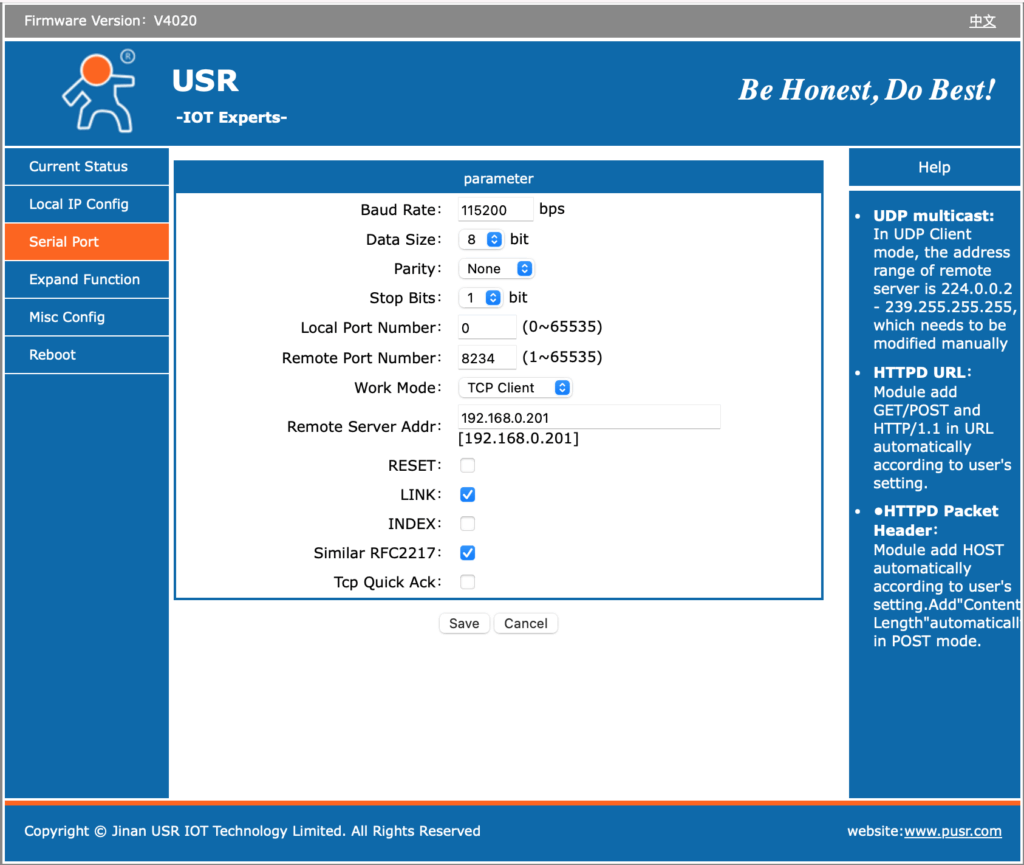
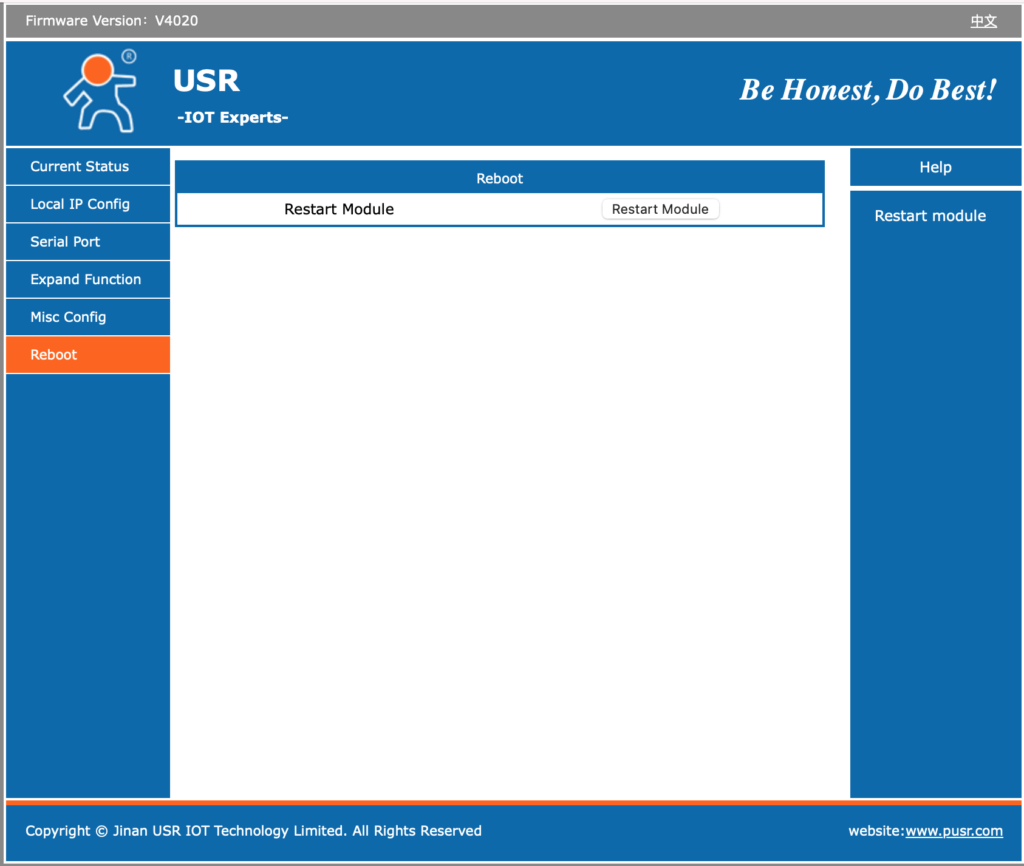
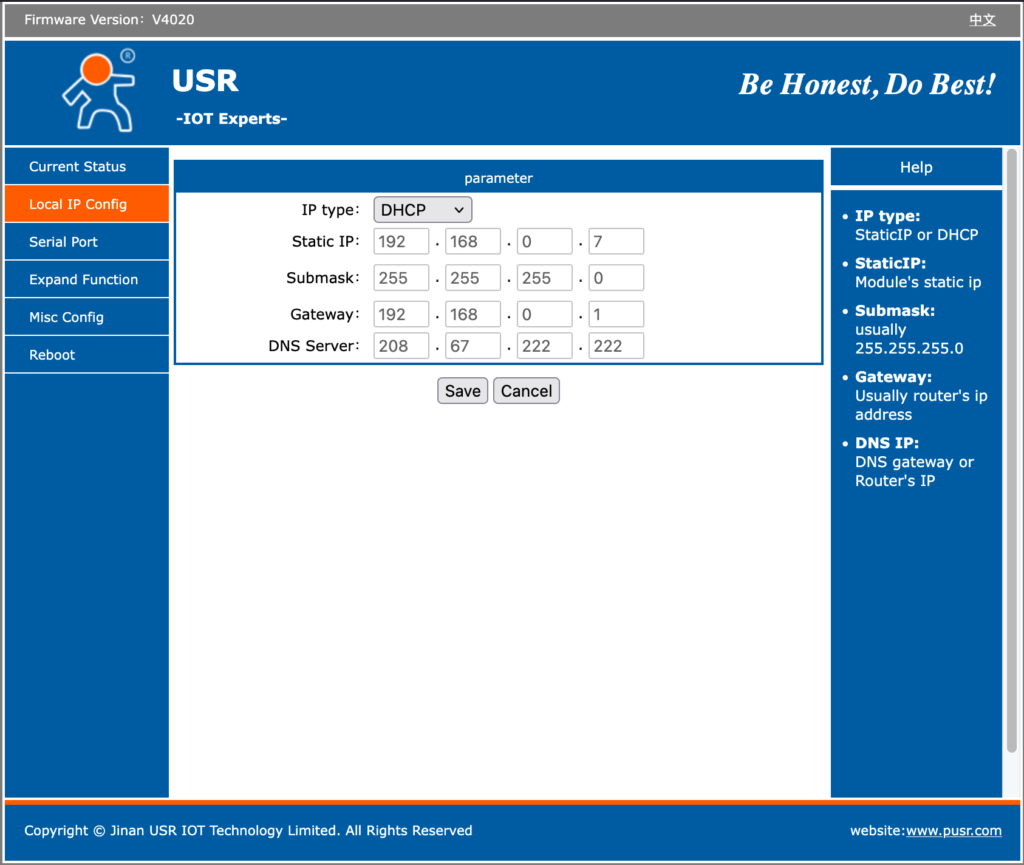
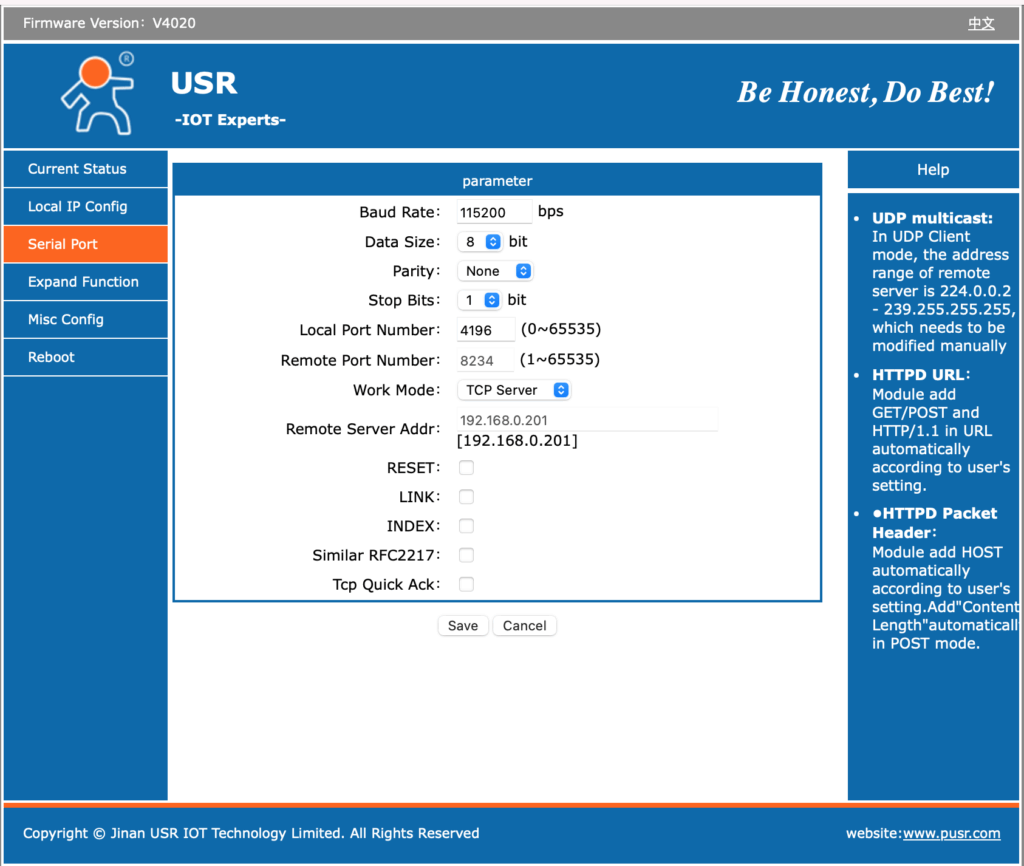
Below is a gallery of the six web pages it offers for configuration. Select an image to expand a larger view.
The above images show the default settings prior to any changes to support my needs. It is worth noting that on the underside of the adapter is a sticky label identifying its preset IPv4 address, MAC address and login credentials (username and password).
A word about security
The device only supports IPv4 and it’s web server implements an HTTP interface using TCP port 80. As such there is no encryption on its network interface. Its default username of ‘admin’ and password of ‘admin’ is also a very insecure baseline configuration. As all network traffic is unencrypted tho, there is little value in strong credentials.
There does not appear to be any support, using the web configurator, to apply firmware updates/patches. I see that as a good thing as devices such as these should not be left to query and download updates from the Internet unattended. Doing so would provide a door through which updates containing malicious or, at the very least, unwanted software could be introduced.
The web-configuration interface is simple and straightforward although its not clear what some options do even after reading the documentation. However, don’t assume what you see is the entire interface. I’d be willing to bet there are some undocumented web-pages in there too! A scan for open ports identified TCP listeners on ports 80, 1501 & 4196. The first (HTTP) and last (my config for network/serial data) are to be expected. However why is it listening on 1501? Perhaps this is how the PUSR, VCOM software connects? Unknown, but certainly worth ensuring that 1501/TCP is blocked by firewall rules.
Something that concerns me slightly is that it supports specification of a DNS server. Why does a simple network/serial adapter need to resolve DNS names? There may be a harmless reason, but it is possibly a hint that it contains some capability that requires this…
This adapter and any similar adapter, including the aforementioned Waveshare, should never be exposed to the Internet. If remote access is required always, protect its interface with a VPN, overlay network or deploy other protective measures. Furthermore, I would recommend that it be tightly fire-walled so that it cannot originate traffic to any LAN or WAN – including the Internet – endpoint. Incoming traffic should also be blocked to all but those ports absolutely necessary for it to fulfil its function.
The simple message is don’t assume these devices are friendly; treat them as hostile and a threat to your network and connected infrastructure.
Configuration
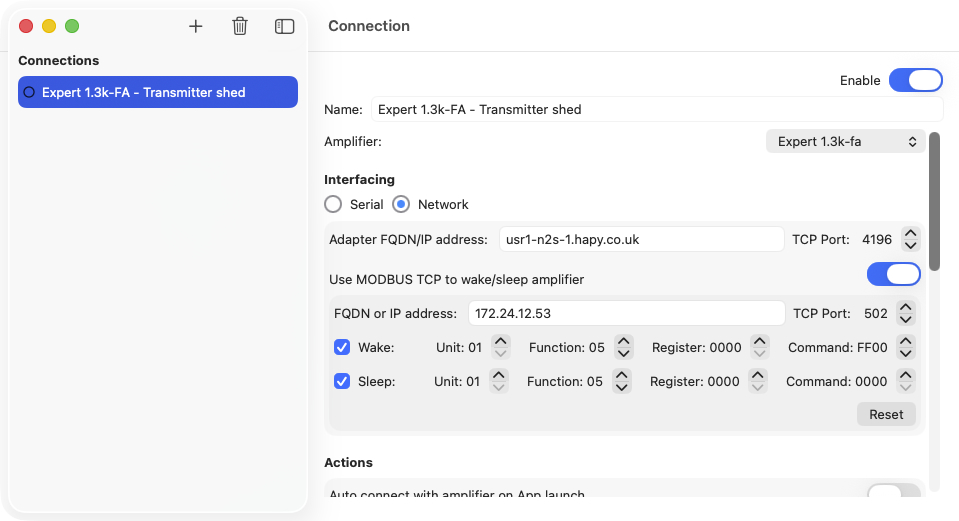
It is my choice to use DHCP and Dynamic DNS on my LAN as opposed to static IP addresses per device. I therefore, chose to configure my USR-TCP232-306 to use DHCP and made a Reservation within my DHCP servers for it’s MAC address. My DHCP servers will insert a name of my choice into DNS. DHCP can be selected on its ‘Local IP Config’ tab/page after which the specification of other network parameters is disabled but previous values remain on-screen. See the leftmost image in the gallery below.
The second image presents the serial config I chose and which works with my Expert 1.3k-fa amplifier. Note that I disabled: INDEX and Similar RFC2217 as I’m not absolutely clear what they do.
The ‘Local Port Number’ contained a default value of ‘0’. That is not useful; the value I chose, 4196, was mearly for convenience and could have been anything greater than 1024.
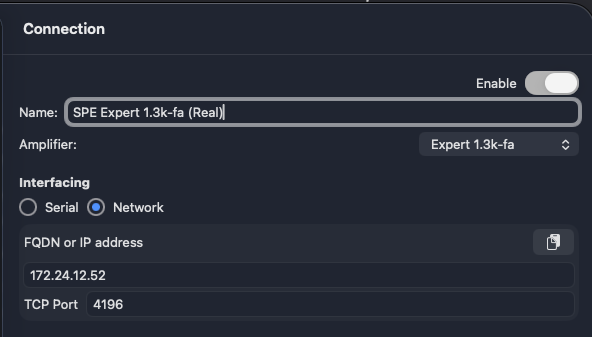
As my DHCP configuration supplies the USR-TCP232-306 with an IP address of 172.24.12.52 and its ‘Local Port Number’ is configured to 4196, I configured Expert Controller Plus as shown in the snipped below. Expert Controller config would be the same. Note: I could equally have supplied the Fully Qualified Domain Name (FQDN) I’ve chosen instead of the IPv4 address.
Serial cable wiring
The three-core cable I created for use with the Waveshare adapter worked just fine which was no surprise as both the USR-TCP232-306 and Waveshare implement a DTE interface. For cable wiring details please read my guide to serial cable wiring.
Final thoughts
Like the Waveshare adapter, the USR-TCP232-306 does not implement hardware flow control and so RTS/CTS and DTR/DSR are not available. I’m aware that some use RTS to signal an amplifier to awaken; that capability will therefore not work and an alternative will be necessary.
A major issue with the Waveshare adapter is a deficient DHCP protocol implementation. I’ve posted about this before but it simply does not renew an address lease either before or on expiration. That is a major problem if you are using DHCP. I’m glad to report that the USR-TCP232-306 does not have this defect. If anything it seems to renew its address more frequently than necessary, with renewal requests hourly regardless of the lease duration!
Preview No. 6 (build 325) was made available this morning.
This will be the last Preview release as it contains the core features that will comprise the full public/production release next year.
Next, the project will move to a test phase and I’ll be making a Test version available in the coming weeks. This will have the same look/feel and runtime requirements as its earlier Preview’s but will appear in Apple TestFlight as a new and different application. I’ll add those currently testing the Preview to the Test release so TestFlight notifies you when it’s available. I don’t plan to remove the Preview so it will continue to be available until it reaches the term of its 90 day validity period.
The first Test release will include resolutions for defects identified in Preview No. 6 and will support persistant storage of settings/properties.
I hope the Preview releases have provided a useful insight into the development of Expert Controller Plus and thank you to all who have provided feedback.
Changes in this Preview fall into the following two broad categories.
General
On Standby and Operate LCD displays one or more bar-graphs are used to present power, Voltage etc. It was noted that when a ‘bar’ reached the right-side of its graph it was not displayed correctly. This has now been resolved. The defect is in Expert Controller also so, that will get fixed in an upcoming release.
Previously the Interface type, either ExpertDefault or Expert1kfa was specified on both a Connection and for Amplifier configuration. This led to it being defined in two places and thus created a potential conflict. It has now been removed from the Connection configuration so, it’s now only necessary to select the type of amplifier.
There have been numerous other small changes such as adding some ‘help’ style messages, preventing removal of Amplifiers when used by a Connection and adding a ‘Welcome’ window. I’ve also done a review of all Accessibility labels and hints resulting in many additions and updates.
SPE Expert 1k-fa
The SET Antenna support added in the last Preview has been amended to correctly display an information message on the LCD display. In the previous build it was either not shown or incorrectly shown.
Support for an audible / Apple Voiceover report announcing the configuration of an Expert 1k-fa is now supported.
Preview No. 5 (build 158) was made available earlier this evening. Changes in this Preview are primarily additions to Set mode support for the Expert 1k-fa amplifier but there is a cosmetic change to the LCD+Buttons window for all amplifier models.
The sections below present a description of the changes and these are followed by a gallery that contains Expert Controller Plus, LCD+buttons window, images for the Expert 1k-fa. Selecting an image generates a larger image.
This Preview is available, immedietly, to those who have previously expressed interest in Expert Controller Plus and the previous Preview should be automatically updated by Apple Test Flight. For others who would like to try Expert Controller Plus, help with testing and/or provide feedback, drop me a message using the Contact page on this website. I will add you to the group of testers. Note: To run the App you will need to install the Apple, Test Flight App, available for free from their App Store.
Expert 1k-fa
Support for SET now includes configuration for Antenna, CAT, Manual tune and Backlight display. With these additions, the entire SET configuration area is now supported. Support for the Alarm history report has also been included in this Preview.
So, assuming Expert 1k-fa support works – See Testing below – Expert Controller Plus now has full support for the full range of SPE Expert amplifiers.
LCD+Buttons Window
SPE Expert Controller uses a single ‘Display’ button which, depending on Standby/Operate mode, either performs the function fulfilled by the CAT button or the Display button in the SPE, Windows Term software. Until this Preview, Expert Controller Plus used the same approach. Howerver, as of this Preview, there are now two buttons: ‘CAT’ and ‘Display’. The two-button approach allows the UI design to be shared between the Expert 1k-fa and all other Expert amplifiers. The size of the window has not increased to encompass the new button; instead buttons have been rearranged and the ‘Backlight on/off’ button labels changed from text to icons as illustrated in the example below.
Preview releases of Expert Controller Plus are available to anyone who wishes to either have sight of the software or be involved in testing. Being invoved in testing enables you to provide feedback and to suggest features/changes that you’d like to see in the App when it gets to public release. For the Expert 1k-fa especially, this is of major significance as I don’t have access to a physical Expert 1k-fa so all software implementation has been accomplished using SPE documentation and a simulator I’ve also developed. But testing against ‘real’ Expert 1k-fa amplifiers is needed. Without it I have no way to know for sure whether Expert Controller Plus is actually working with that amplifier model. So if you would like to be involved in testing please do get in touch using the Contact form on this website.
What’s next
Next, I plan to create several short YouTube video’s that provide an overview of Expert Controller Plus. These will detail how it differs from the regular Expert Controller, its capabilities, setup and operation.